Managing Integrations - Zoom
Configure third-party integrations from the Integrations tab in System settings.
Connecting to Zoom
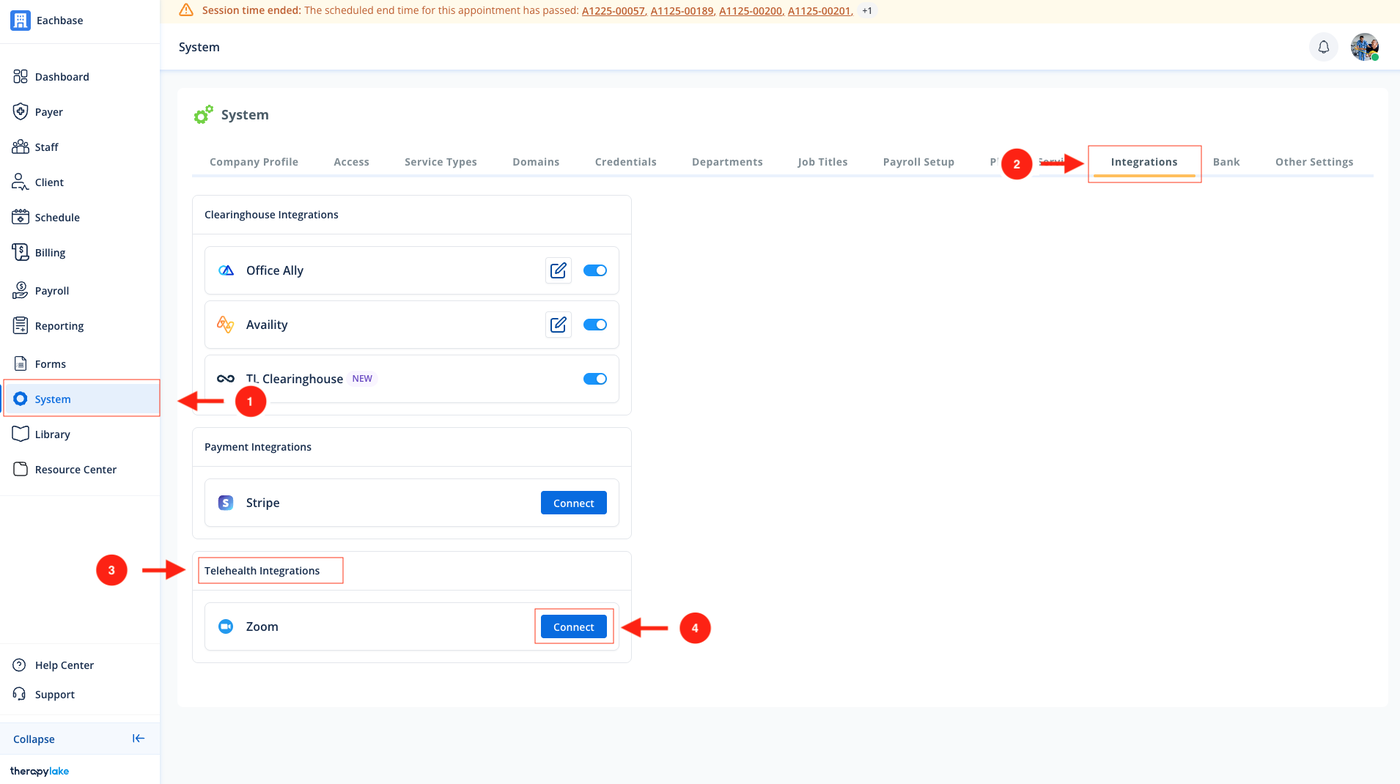
1. Navigate to System
Go to the left pane and click > System.
2. Navigate to Integrations Tab
Click on the Integrations tab at the top of the page.
3. Locate Telehealth Integrations
Scroll down to the Telehealth Integrations section and find Zoom.
4. Initiate Zoom Connection
Click the Connect button next to Zoom.
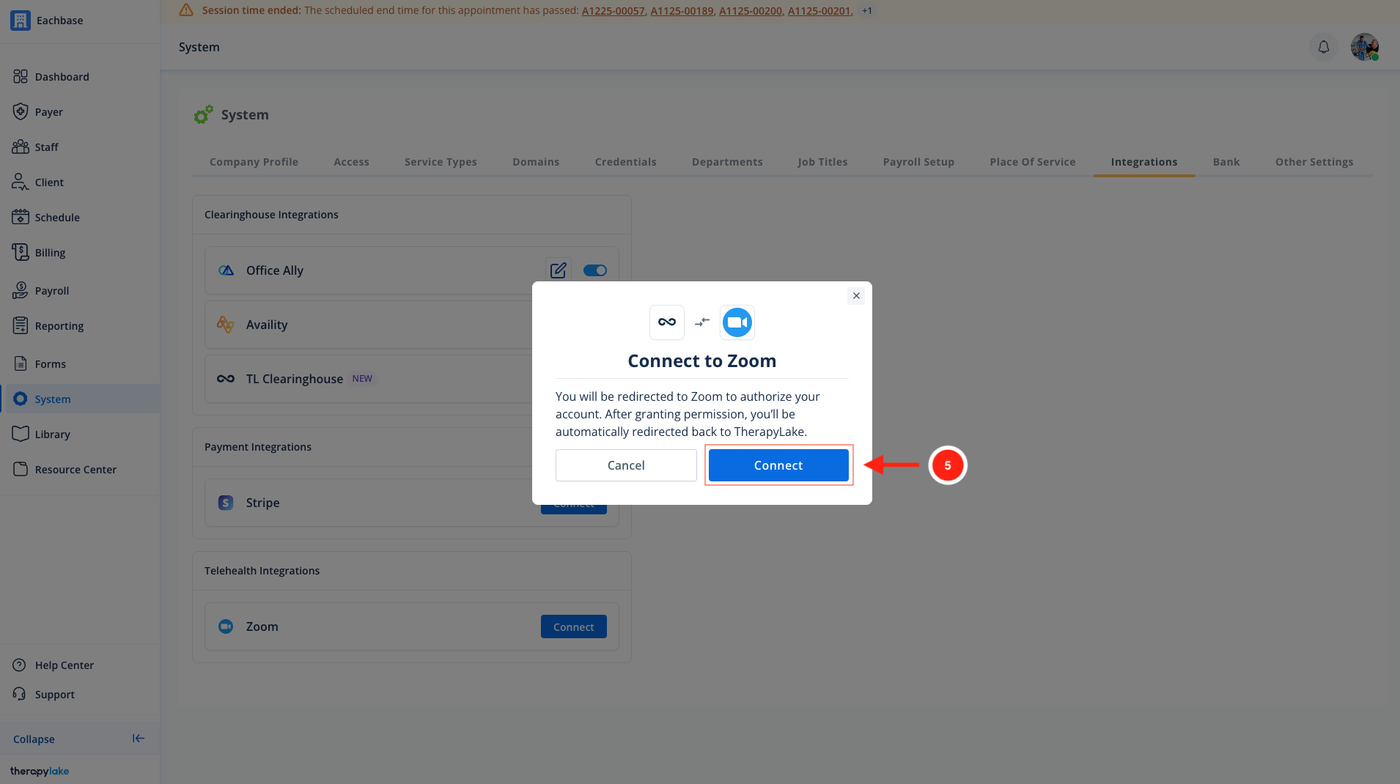
A confirmation modal will appear explaining that you will be redirected to Zoom to authorize access.
5. Authorize Zoom Account
Click Connect in the modal.
You will be redirected to Zoom to grant the required permissions.
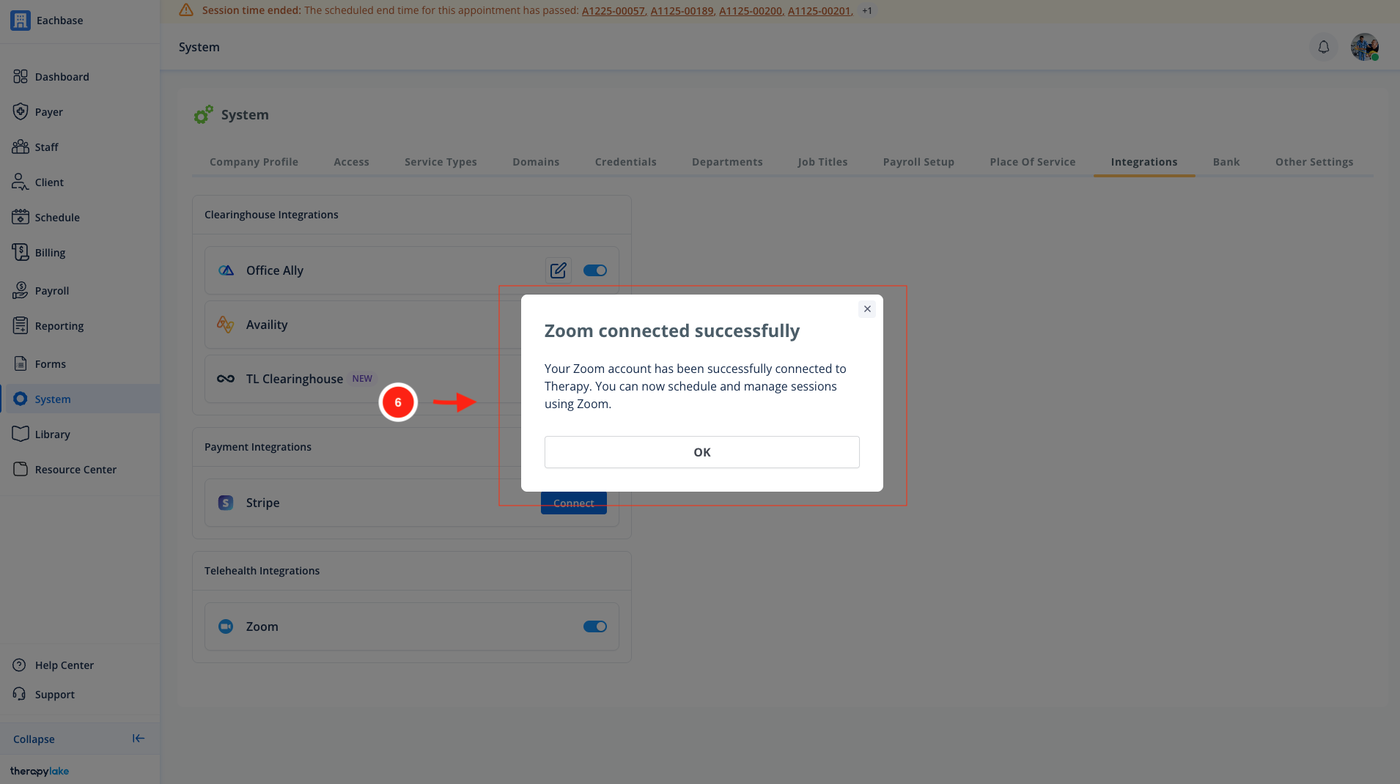
6. Confirm Successful Connection
After authorization, you will be automatically redirected back to TherapyLake.
A confirmation message will appear stating that Zoom has been connected successfully.
Managing Zoom Integration
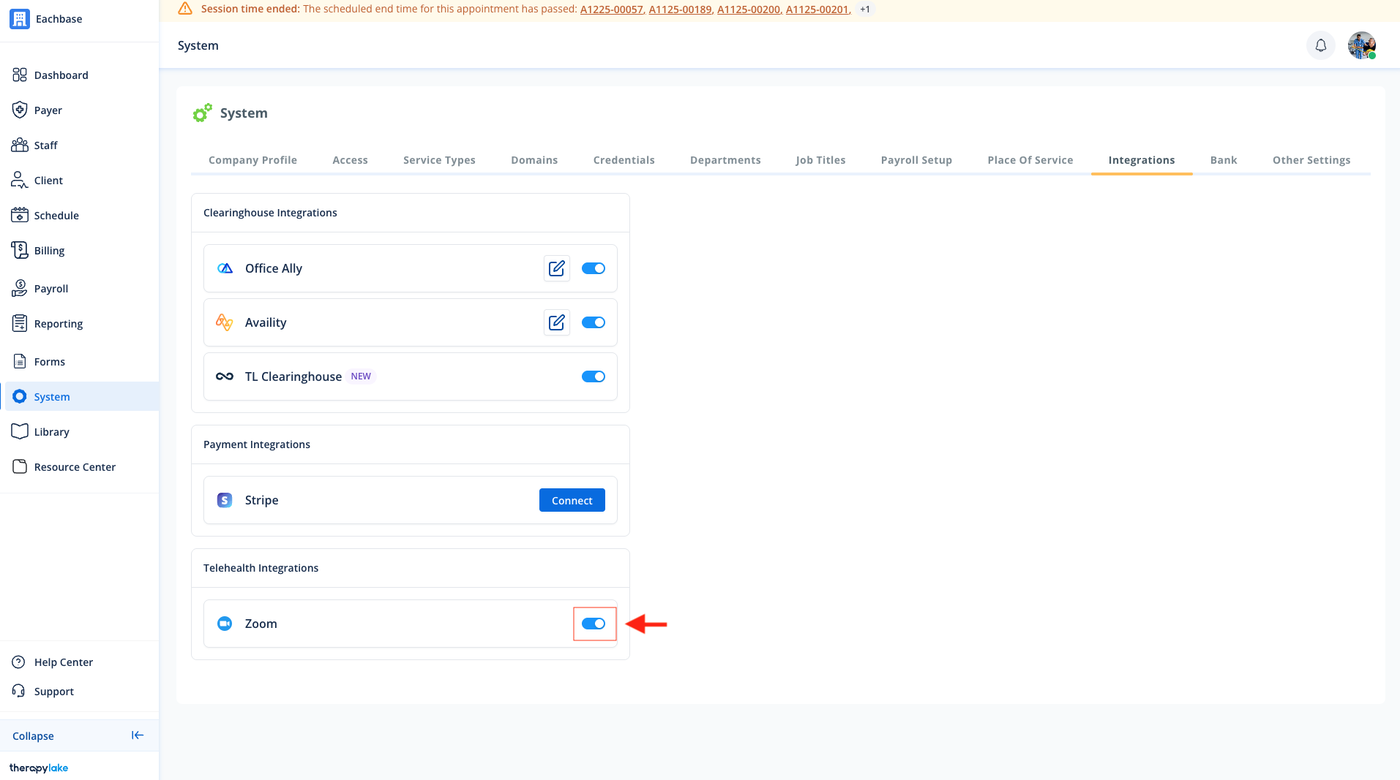
Once Zoom is connected, you can manage the integration directly from the Telehealth Integrations section.
Toggle Connection
Use the toggle switch to enable or disable the Zoom integration as needed.Active Status
When enabled, Zoom will be available for scheduling and managing telehealth sessions.
Starting a Telehealth Session (Zoom)
Once the Zoom integration is enabled, you can create and manage Zoom meetings directly from scheduled appointments.
Creating a Zoom Meeting for an Appointment
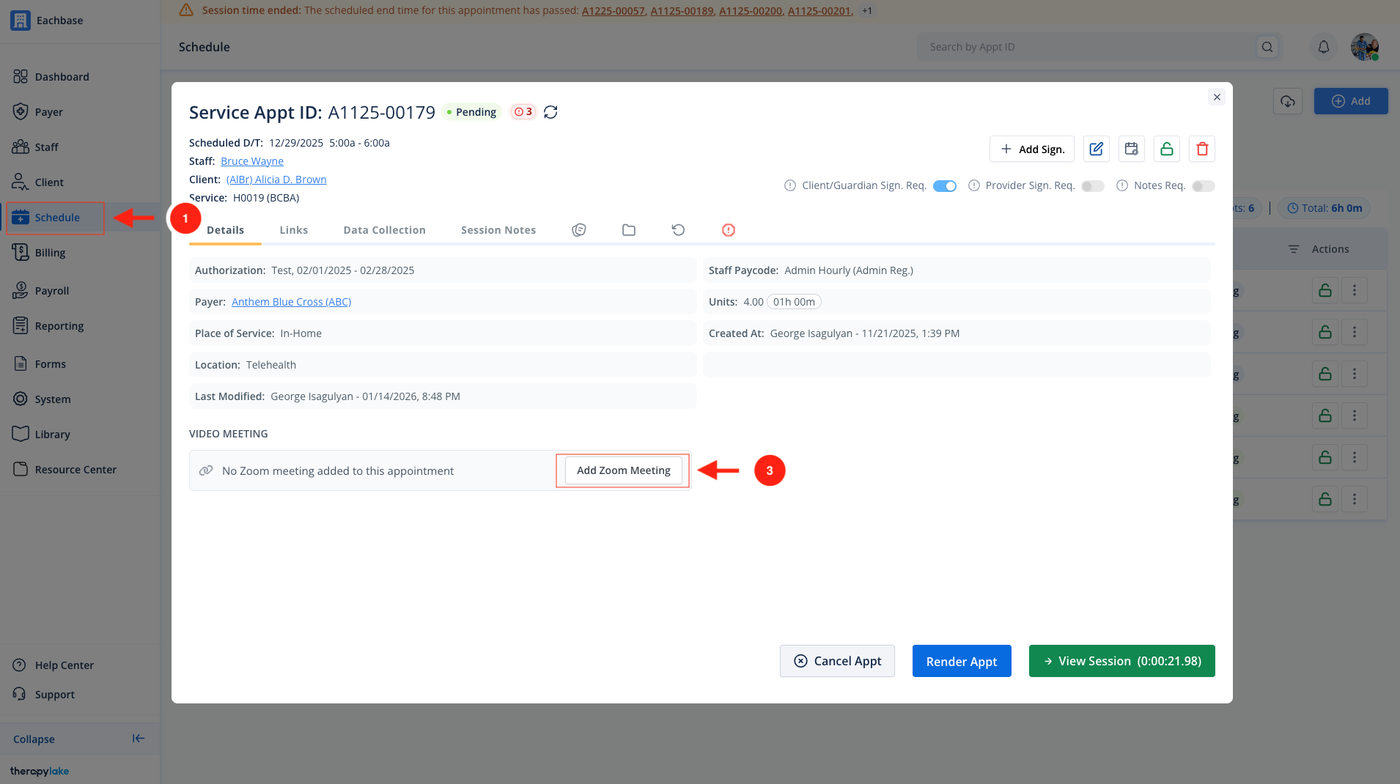
1. Navigate to Schedule
Go to the left pane and click > Schedule.
2. Select an Appointment
Click on the appointment you want to conduct as a telehealth session.
The Appointment modal will open.
3. Add a Zoom Meeting
In the Video Meeting section of the Appointment modal:
If no Zoom meeting has been added yet, click Add Zoom Meeting.
A Zoom meeting will be automatically created for this appointment.
4. Share the meeting link
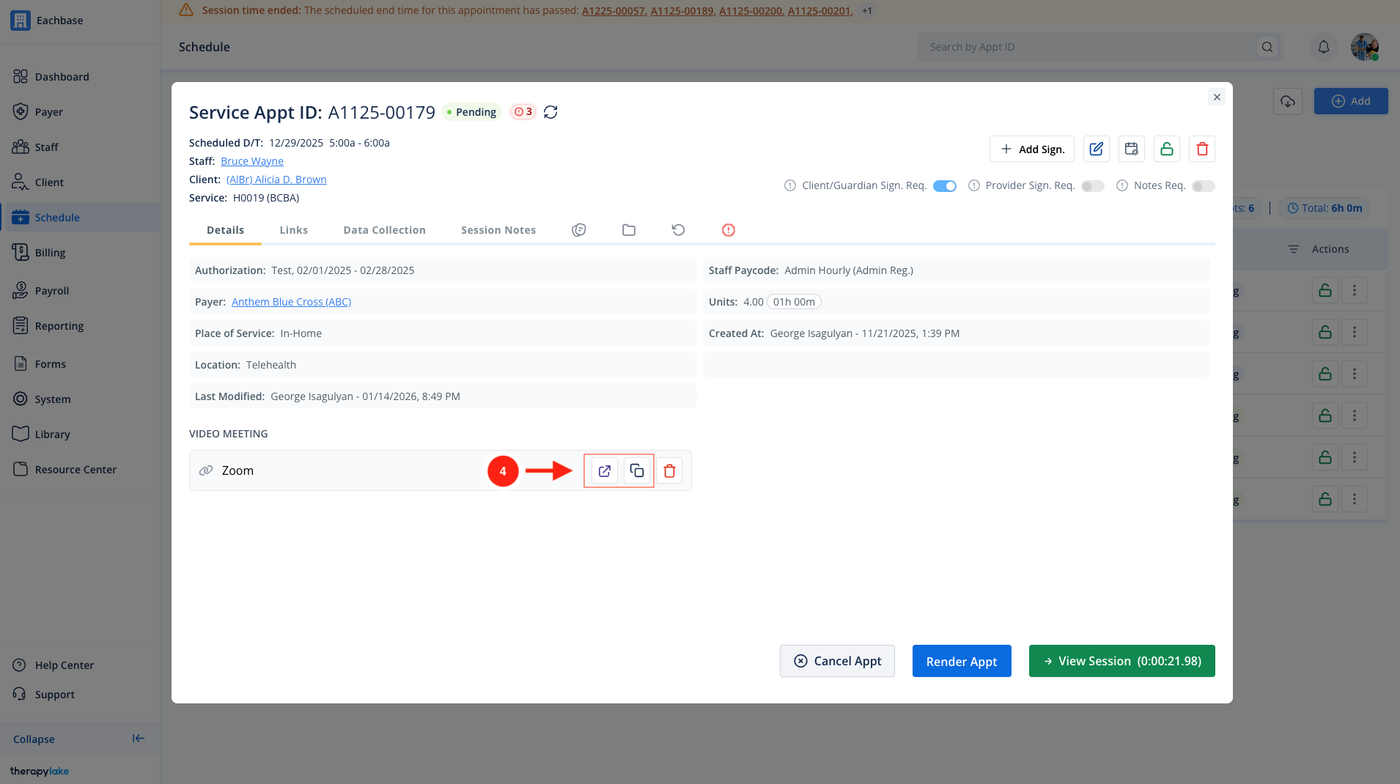
Once the Zoom meeting is created, you can share it with participants:
Copy Link: Click the copy icon to copy the Zoom meeting link.
Open Link: Click the redirect button to open the Zoom meeting.
Removing a Zoom Meeting
If you need to remove the Zoom meeting from the appointment:
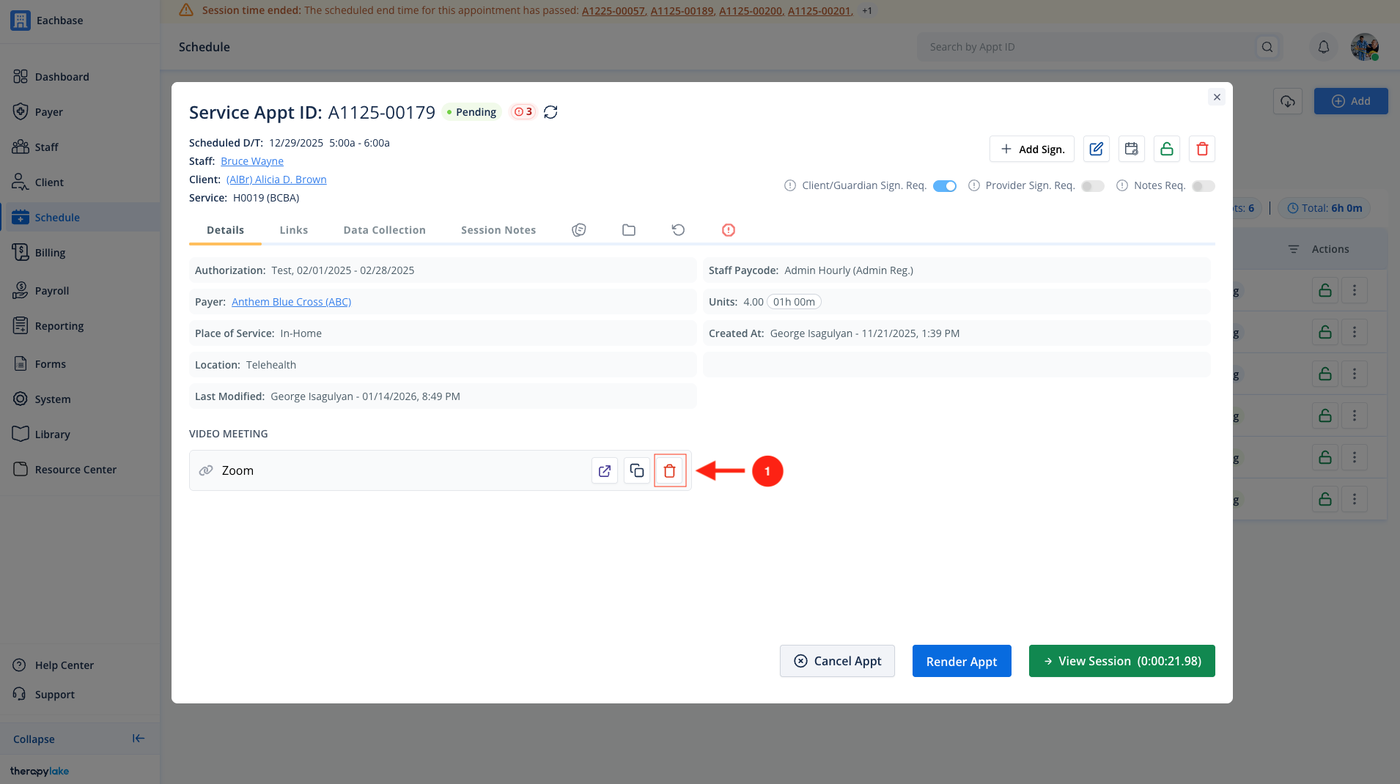
Click the trash icon in the Video Meeting section.
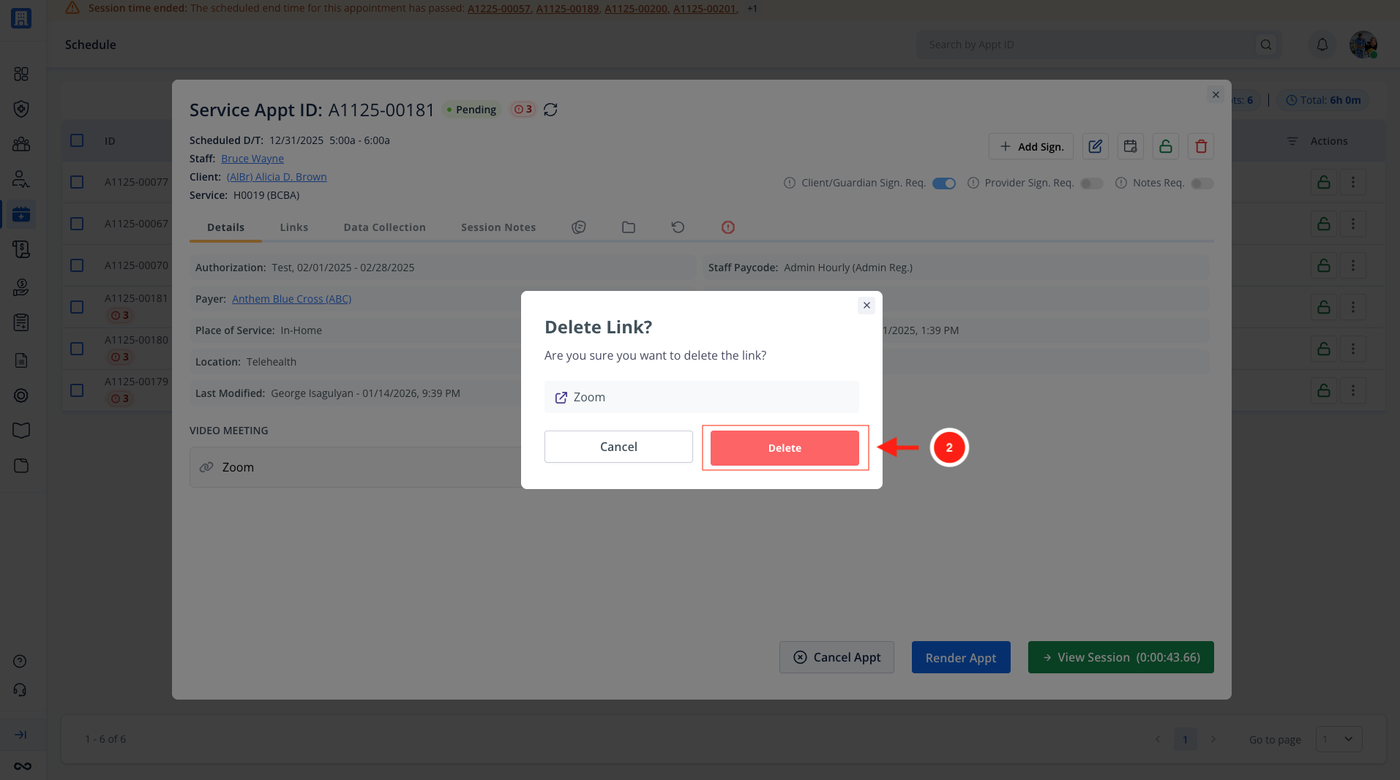
A confirmation prompt will appear. Click Delete to confirm the action.
The Zoom meeting link will be deleted from the appointment.