

Adding an Address for a Client
1. Access the Client Section
-
Go to the > Client section in the left panel.
2. Select the Client
-
Choose the client for whom you want to add an address.
3. Navigate to the General Tab
-
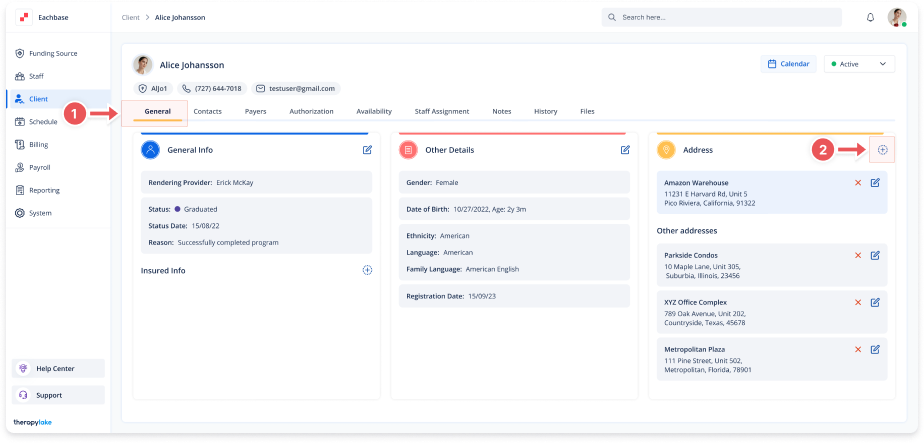
Ensure you are on the General tab on the client's page.
4. Open the Address Modal
-
In the Address box on the right side, click on the blue + button.
5. Fill in the Address Details
-
The Add Address modal will appear. Fill in the following fields:
-
Name: Enter a name for the address.
-
Street Address: Enter the street address.
-
Unit/Suite #: Enter the unit or suite number if applicable.
-
Set as Default: Check this box if you want this address to be the default.
-
6. Save the Address
-
Click the Add button at the bottom of the modal to save the new address.
7. Review the Added Address
-
The newly added address will appear in the Address section on the client's profile.