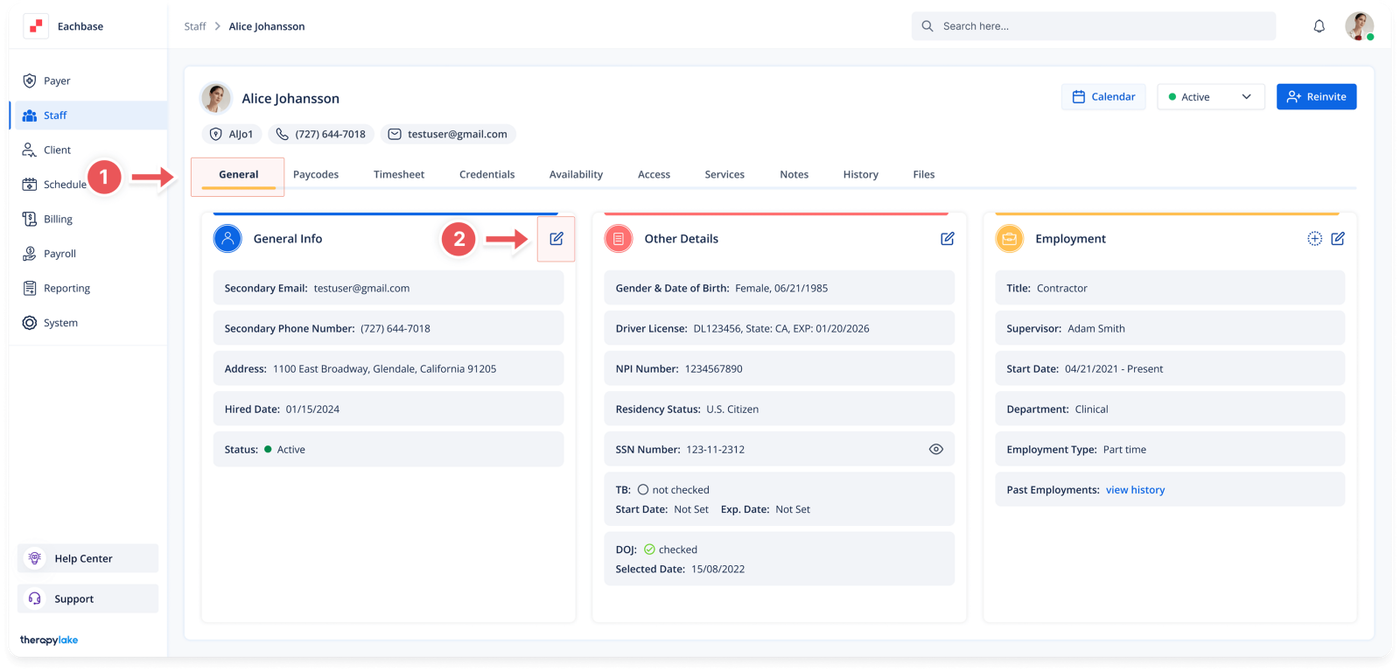
Choose the staff member for whom you would like to add or edit general information.
3. Ensure You Are on the General Tab
Make sure that you are on the General tab. If not, click on the General tab at the top of the page.
4. Edit General Information
Navigate to the left table and click on the blue pencil icon at the top right of the leftmost table next to General Info.
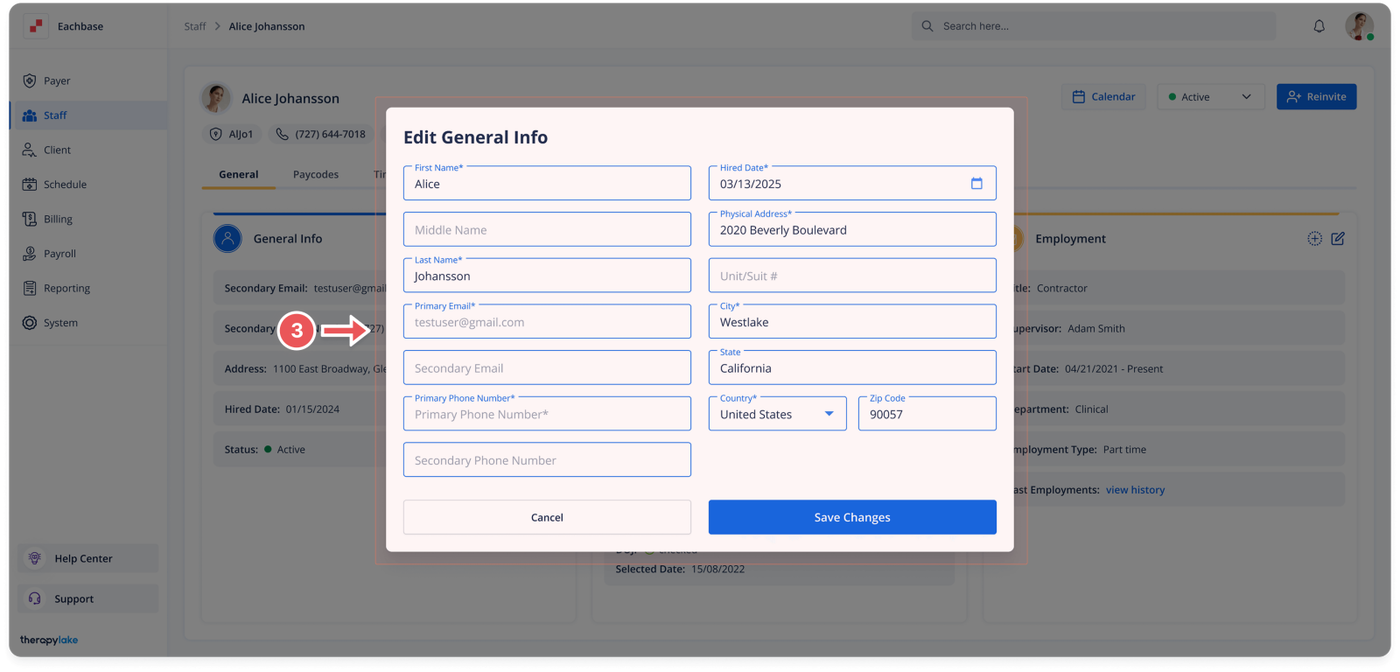
The Edit General Info pop-up window will appear.
5. Update General Information Fields
Edit or add information as needed to the following fields
First Name
Middle Name
Last Name
Primary Email
Secondary Email
Primary Phone Number
Secondary Phone Number
Hired Date
Physical Address
Unit/Suite #
6. Save Changes
Click the Save button on the bottom right of the pop-up window.
7. View Updated Information
The updated information will populate on the page. Some information will be displayed under the staff member's name for quick viewing, while other information will be in the General Info box.