Viewing the Completed Claims List
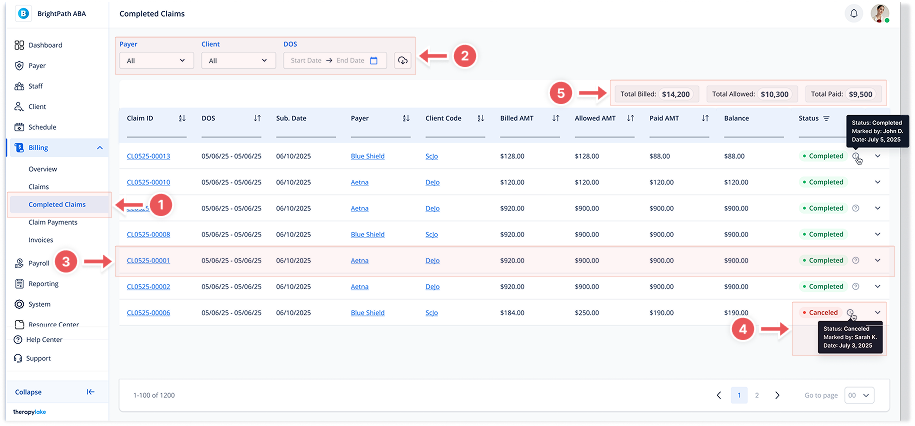
1. Navigate to Completed Claims
-
Go to the left sidebar and click on Billing > Claims > Completed Claims.
2. Use Filters to Refine Results
At the top of the page, you can filter claims using:
-
Date of Service (DOS) - Start and End Date
-
Search bar - Search by Client, Claim ID, or other keywords
3. Review Completed Claims Table
The table displays the following columns:
-
Claim ID (clickable to open full claim details)
-
DOS (Date of Service)
-
Submitted Date
-
Payer
-
Client Code
-
Billed Amount
-
Allowed Amount
-
Paid Amount
-
Balance
-
Status
4. Claim Status Types
Each claim displays a status label in the final column:
-
✅ Completed
Claim was successfully processed and closed. -
❌ Canceled
Claim was canceled and is no longer active.
Tooltip includes who canceled it and the cancellation date.
5. Totals
In the top-right above the table, you'll see summary values for:
-
Total Billed
-
Total Allowed
-
Total Paid
These values reflect the totals for all claims currently shown (based on applied filters).