Editing a Claim Payment
1. Navigate to Claim Payments
-
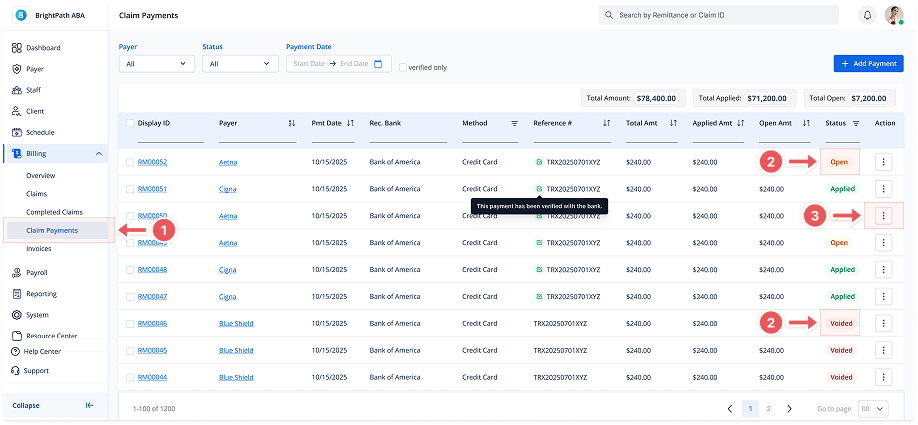
Go to Billing > Claim Payments from the left-hand menu.
2. Locate the Payment
Use the filters or search bar to find the payment you want to edit.
You can edit payments that have the following statuses:
-
🟡 Open
-
🔴 Voided
-
Payments with Applied status cannot be edited.
3. Open the Edit Modal
Click the More icon (…) at the end of the row and select Edit.
You can also edit a claim payment directly from the Payment Details page.
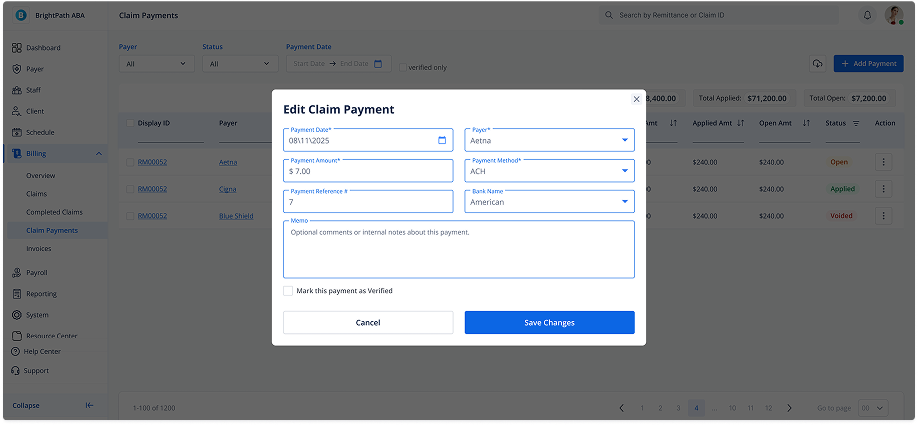
This will open the Edit Claim Payment modal with the current values filled in.
4. Update the Payment Details
You can edit the following fields:
-
Payment Amount
-
Payment Date
-
Payer
-
Bank
-
Payment Method (e.g., Check, EFT, Credit Card)
-
Reference Number
-
Notes
You can also check Mark as Verified if applicable.
5. Save the Changes
After making your edits, click Save.
A confirmation toast will appear.