Closing an Invoice
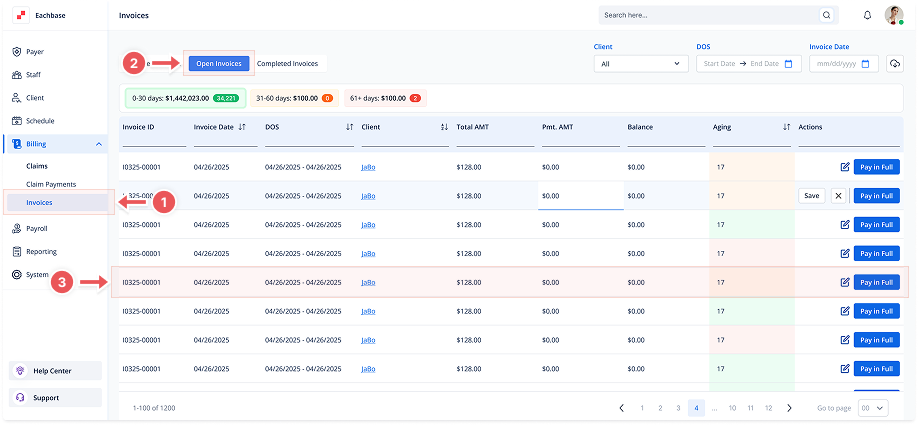
1. Navigate to the Invoices Section
-
Go to the Billing section in the left pane and click on Invoices.
2. Click on the Open Invoices Tab
-
At the top of the page, click the Open Invoices tab to view the list of Open Invoices.
3. Open the Invoice Details
-
Click anywhere on the invoice line to open its details.
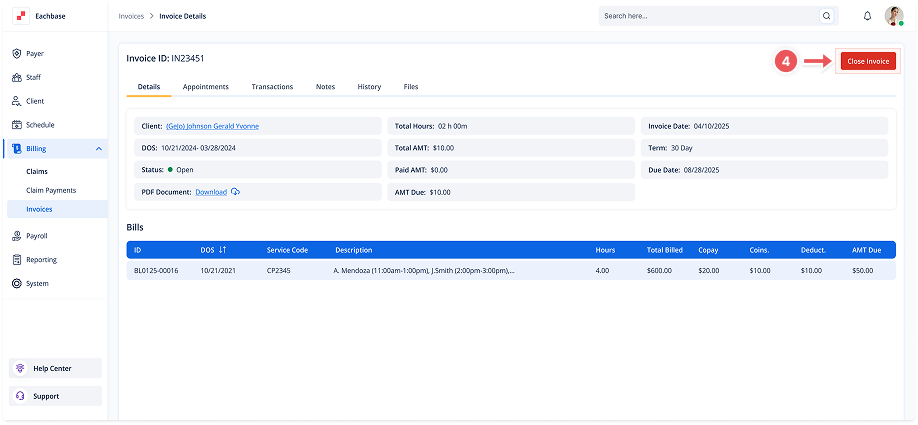
4. Click Close Invoice
-
On the Details tab of the invoice, locate the Close Invoice button in the top-right corner.
5. Confirmation Modal
-
A confirmation modal will appear asking for the reason for closing the invoice.
-
Type your reason or comment in the text box.
6. Finalize Closing
-
Click Close again to finalize closing the invoice. The status will now be changed to Closed.
-
It can be reopened if the Pmt. AMT is changed and Saved.
Note: After closing, the invoice will move to the Completed Invoices tab.