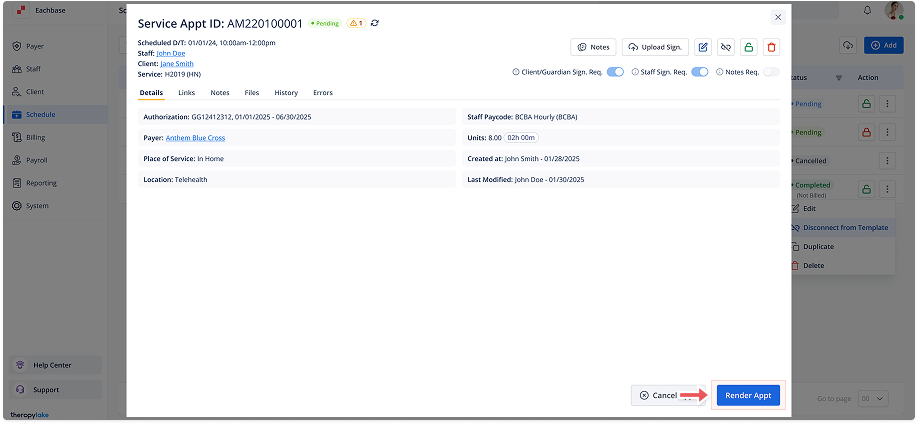
Rendering a Service Appointment
1. Navigate to the Schedule Section
-
Click on "Schedule" from the left-side navigation panel to view the list of appointments.
2. Select the Appointment
-
Locate the service appointment you want to render from the list.
3. Open the Appointment Details
-
Click on the appointment row to open the details in the modal.
4. Initiate Rendering
-
Click the blue Render Appointment button at the bottom right of the modal.
5. Confirm Rendering
-
A modal titled Render This Appointment? will appear. Click Render Appointment to confirm.
6. Review Changes
-
The appointment will be marked as Rendered in the schedule.
7. View Timesheets
-
Timesheets for the completed appointment are automatically created. Go to Payroll > Active to view them.
8. Prepare Claims for Rendered Appointment
-
Navigate to Billing > Pending Claims > Prepare Claims to include this rendered appointment in a claim.