

Adding a Staff Appointment (single)
1. Navigate to the Schedule
-
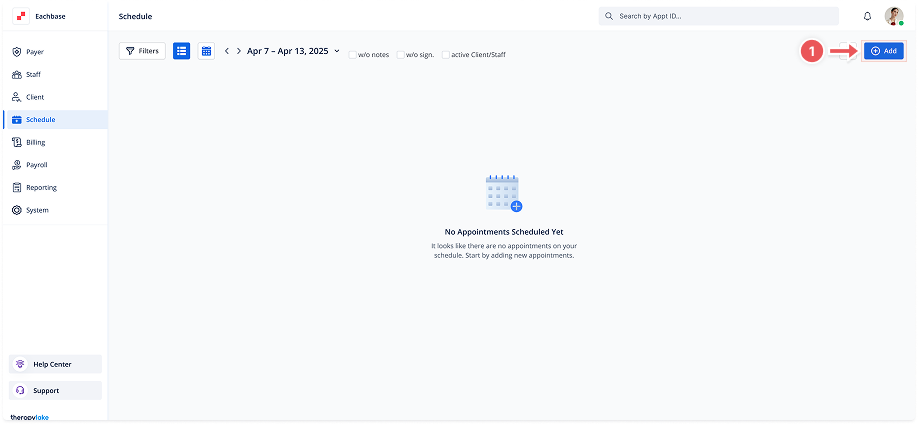
In the left-hand navigation pane, click on Schedule.
2. Click on Add Appointment
-
At the top right corner, click the Add button.
3. Select Event Type
-
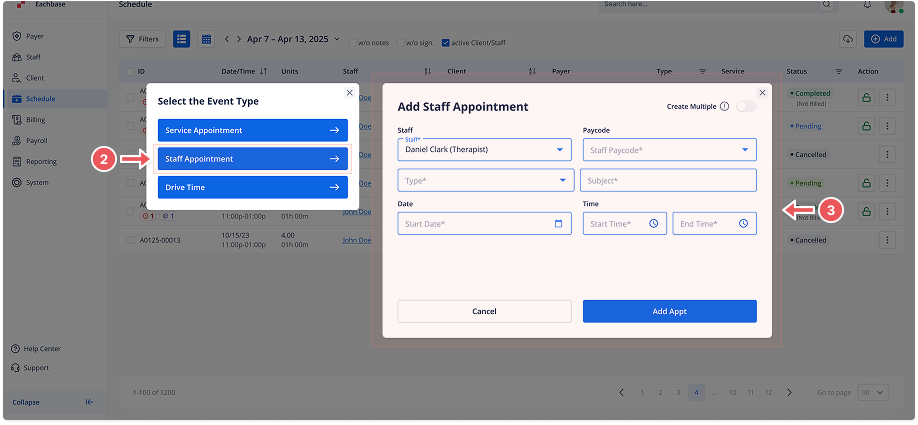
A modal will appear. Select Staff Appointment from the available options.
4. Fill in Appointment Details
-
Staff Member: Select the staff member from the dropdown list.
-
Staff Paycode: Choose the paycode that applies for this appointment.
-
Start Date: Enter the start date for the appointment.
-
Start Time and End Time: Enter the start and end time for the appointment.
5. Click Add
-
Once all details are filled in, click the Add Appointment button to create the staff appointment.
6. View the Appointment
-
The appointment will now be visible in the schedule list or calendar view.
9. Review Overlapping Appointments (if any)
-
If there are any overlapping appointments in the selected pattern, a Confirmation modal will appear.
-
You can either Confirm to skip the overlapping ones or go back and adjust the schedule.
10. Add Appointments
-
Once you are satisfied with the details and the number of appointments to be created, click the Add X Appointments button (where X is the number of non-overlapping appointments).
11. View Scheduled Appointments
-
After successfully creating the series of appointments, you can view them in both the List View and Calendar View under the Schedule section.