

Viewing Pending Claim Details
To view the details of a specific claim:
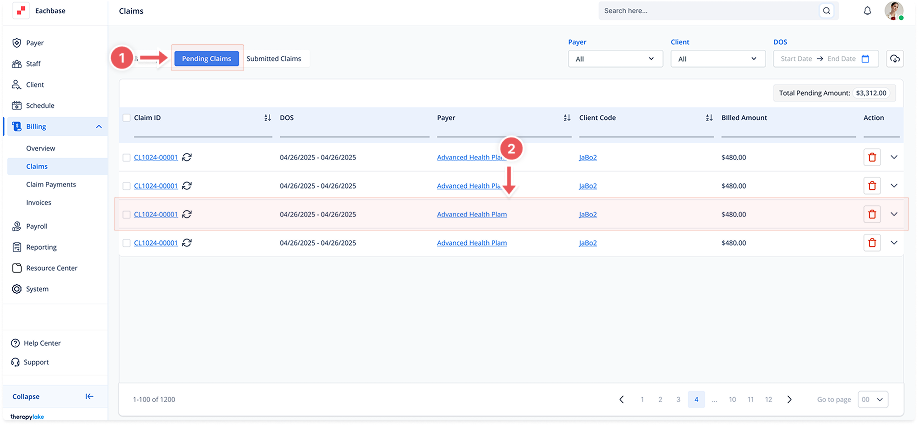
1. Navigate to Billing > Pending Claims
-
Go to the left sidebar and click on Billing > Claims > Pending Claims.
2. Select a Claim
-
Click on the desired claim from the list to open its details.
3. View Claim Details
-
The Details tab will be selected by default. Here, you can view the key details of the claim, including:
-
Staff: The staff member associated with the claim
-
Client: The client associated with the claim
-
Payer: The Payer for the claim
-
Status: Current status of the claim (e.g., Pending)
-
DOS: The date range for the services included in the claim
-
Created & Submitted Date
-
Billed Amount, Allowed Amount, Paid Amount, Balance: Financial details
-
1500 Form Download: Download the form for review or submission
-
4. Billing Entries
-
Below the claim details, you will see the Billing Entries section. This section provides a breakdown of each service within the claim, including:
-
ID: Bill Id
-
DOS: The specific dates for each service
-
CPT Code, Total Units: Details about the service provided
-
Billed Amount, Allowed Amount, Client Total, Paid Amount, Balance: Financial breakdown for each entry
-
5. Additional Claim Actions
From the claim details view, you can also manage the claim using the available action buttons:
-
Edit Claim: Click the pencil icon in the top-right corner to update claim details
-
Delete Claim: Click the trash icon to permanently remove the claim and all associated billing information (confirmation required)
-
Refresh Claim: Click the refresh icon to reload the claim with the most up-to-date appointment and billing data
These actions help you manage and keep your claims accurate before moving forward with submission.