Downloading Notes as CSV
1. Access the Client Section
-
Go to the Client section from the left pane and select the desired client.
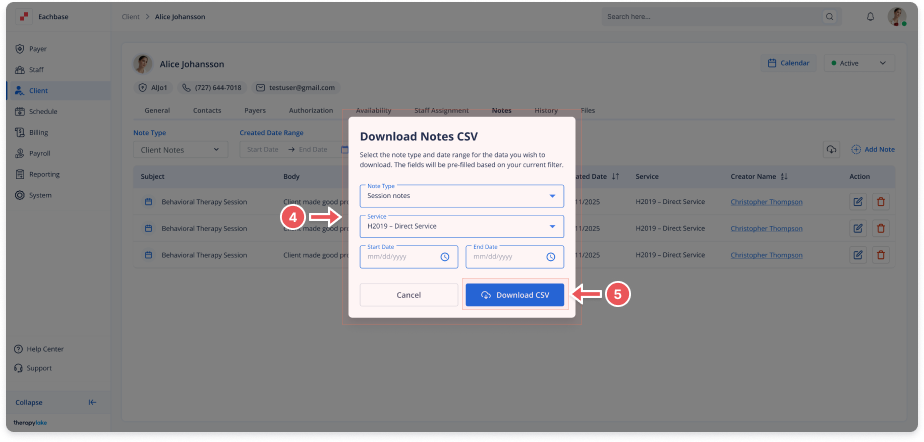
2. Navigate to the Notes Tab
-
Click the Notes tab on the client's profile
3. Open the Download Modal
-
Click the Download CSV button located on the upper right corner of the Notes table.
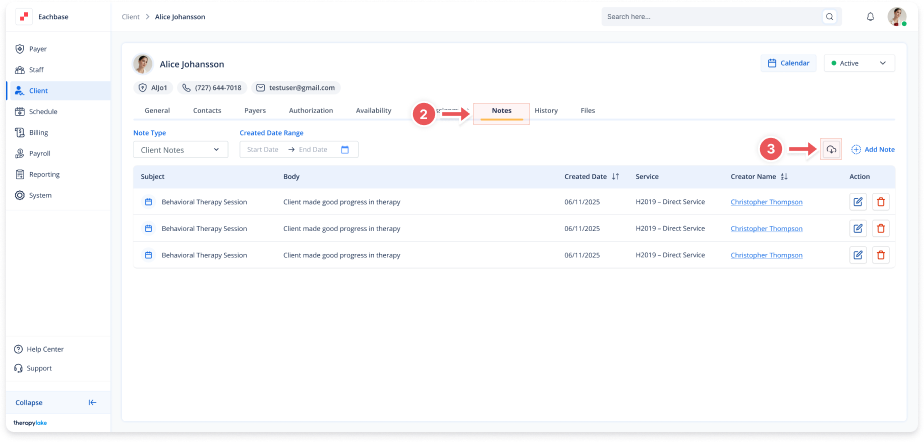
4. Select Download Options
-
In the modal that appears:
-
Note Type: Choose either Client Notes or Session Notes
-
Service: Select the service to filter
-
Start Date / End Date: Set the desired date range
-
5. Download the File
-
Click Download CSV to export the filtered notes into a CSV file.