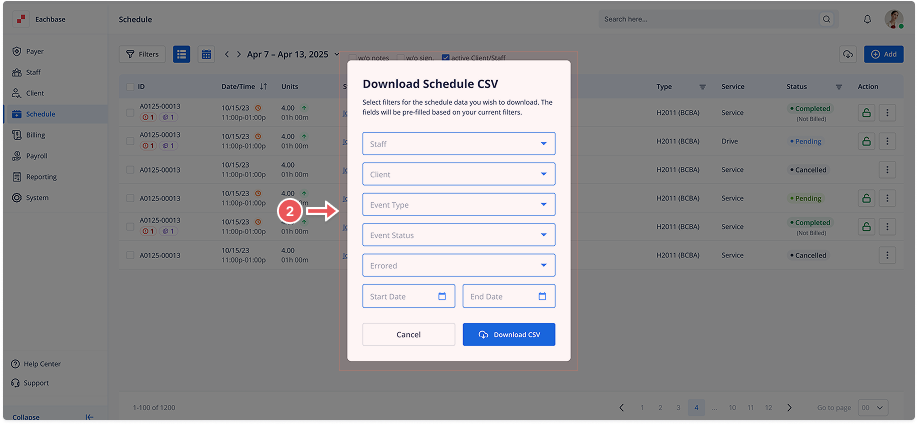
Downloading the Schedule as a CSV
1. Navigate to the Schedule Section
-
Click on Schedule from the left-side navigation panel.
2. Download the CSV File
-
Click the Download CSV button located at the top right of the screen.
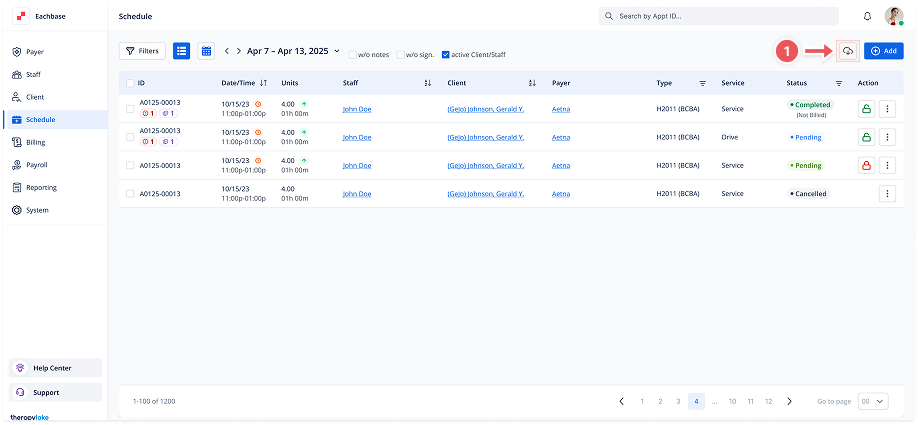
3. Select Filters for the CSV Export
-
Staff Member: Filter by specific Staff Member.
-
Client: Filter by specific clients.
-
Event Type: Filter by specific event types.
-
Event Status: Filter by specific Event Status.
-
Start Date and End Date: Set the date range for which you want to download Appointments.
-
Flagged: Filter by specific Flags.
4. Confirm and Save
-
The CSV file will be automatically generated and downloaded to your device.
5. Review the Downloaded File
-
Open the downloaded CSV file to review the schedule details.