Viewing Files in a Pending Claim
1. Navigate to Pending Claims
-
Go to the left sidebar and click on Billing > Claims > Pending Claims.
2. Select the Pending Claim
-
In the Pending Claims list, click on the specific claim where you want to view a file.
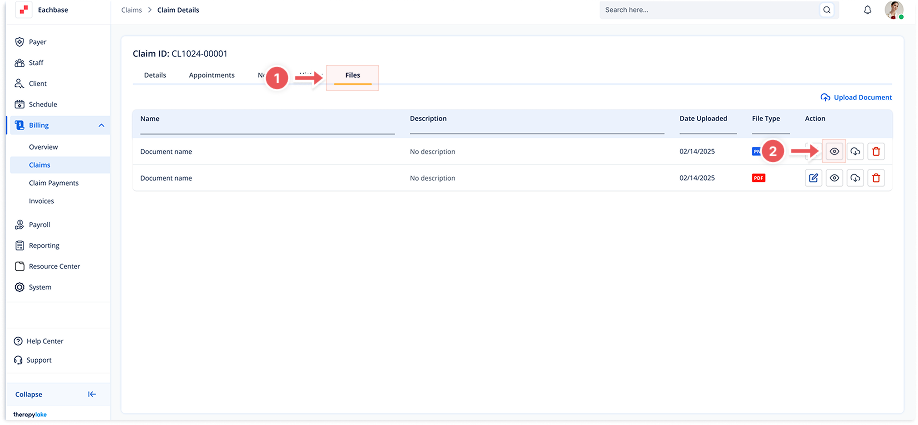
3. Click on the Files Tab
-
Once in the Claim Details screen, click the Files tab at the top of the page.
4. Locate the File
-
In the list of files under the Files tab, locate the file you want to view.
5. View the File
-
In the Action column on the far right, click the eye icon next to the file to view it. The file will open in a viewer, allowing you to see the contents of the document.