

Adding Multiple Staff Appointments
1. Navigate to the Schedule
-
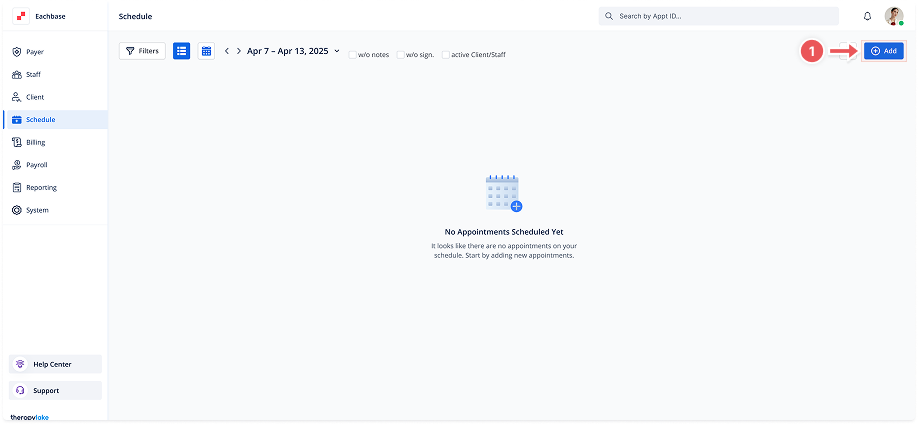
In the left-hand navigation pane, click on Schedule.
2. Click on Add Appointment
-
At the top right corner, click the Add button.
3. Select Event Type
-
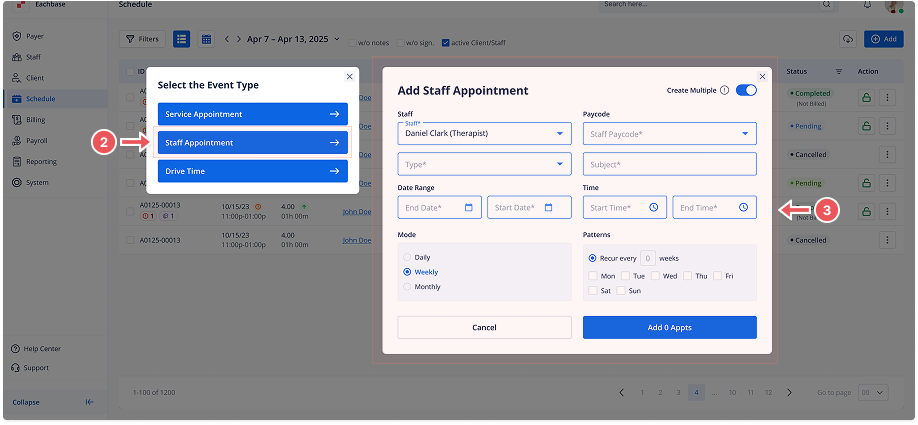
A modal will appear. Select Staff Appointment from the available options.
4. Enable Create Multiple
-
Toggle the Create Multiple option to ON.
5. Fill in Appointment Details
-
Staff Member: Select the staff member from the dropdown list.
-
Staff Paycode: Choose the paycode that applies for this appointment.
6. Set Repeat Pattern
-
Date Range: Set the start and end dates for the recurring appointments.
-
Start Time and End Time: Enter the start and end time for each appointment.
-
Mode: Choose the recurrence mode - Daily, Weekly, or Monthly.
-
Patterns:
-
For Daily, set how many days it should recur.
-
For Weekly, select the days of the week and the interval of weeks.
-
For Monthly, select the day and the interval of months.
-
7. Add Appointments
-
Review the recurrence settings, and click the Add X Appointments button.
8. Handle Overlapping Schedules
-
If there are overlapping schedules, a confirmation screen will appear indicating which appointments overlap. Confirm to proceed without adding the overlapping ones.
9. View the Appointments
-
The appointments will now be visible in the schedule list or calendar view.