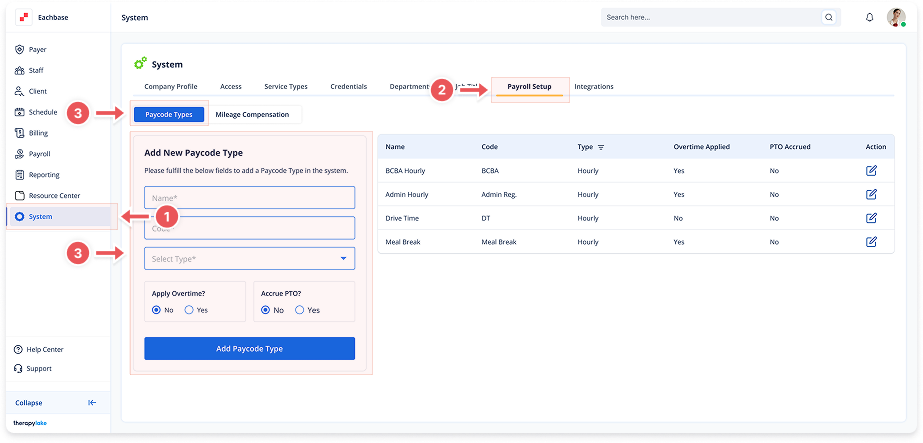
Adding Paycode Types
1. Navigate to System
-
Go to the left pane and click > System.
2. Navigate to Payroll Setup Tab
-
Click on the Payroll Setup tab at the top of the page.
3. Select Paycode Types Tab
-
Ensure the Paycode Types tab is selected on the left side.
4. Enter Paycode Details
-
Name: Enter the paycode name (e.g., "BCBA Hourly", "Drive Time", "Meal Break")
-
Code: Enter a short code (e.g., "BCBA H", "DT", "MB")
-
Type: Select Hourly or Salary
-
Apply Overtime?: Choose Yes or No
-
Apply PTO?: Choose Yes or No
5. Save Paycode Type
-
Click the blue Add Paycode Type button.
-
The new paycode will appear in the right table.