Editing a Template/Series for Service Appointments
To edit a template (series) of Service Appointments, follow these steps:
1. Open the Edit Screen
-
Navigate to the specific Service Appointment you want to edit.
-
Click the Edit icon (pencil) next to the appointment to open the Edit Service Appointment modal.
2. Toggle to Edit Template
-
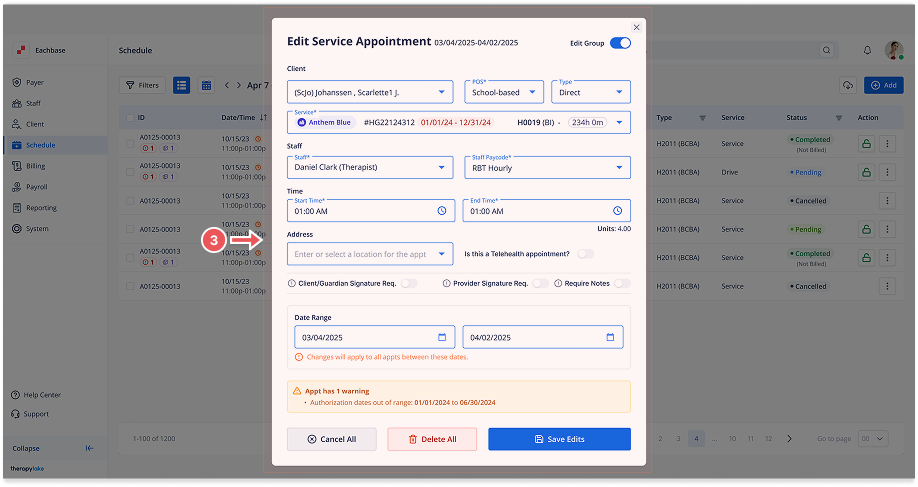
In the Edit Service Appointment modal, you'll see a toggle labeled Edit Template. Turn this toggle on to switch from editing a single appointment to editing the entire template (series) of appointments.
-
When you toggle this on, the modal will change to Edit Service Appointment (Series).
3. Review the Details
-
In the Edit Service Appointment (Series) modal, the fields available for editing include:
-
Client: Select the client associated with the service.
-
Staff List: Choose the staff member assigned to this appointment series.
-
Authorization: Ensure the correct authorization is selected.
-
Service: Set the type of service.
-
Type: Choose the type (e.g., Direct, Indirect).
-
Place of Service: Specify the location where the service is provided.
-
Staff Paycode: Enter the staff pay code.
-
Start Date, Start Time, and End Time: Set the new start date, start time, and end time for the entire series.
-
Address: Enter or select location for the appointment.
-
4. Continue Editing
-
Click Continue to proceed to the next step where additional options are available, such as canceling or deleting all appointments in the series.
5. Cancel or Delete Appointments
-
If needed, you can choose to Cancel All Appointments or Delete All Appointments associated with this template.
-
Cancel All Appointments will cancel all pending appointments in the series.
-
Delete All Appointments will remove all pending appointments in the series.
-
6. Update the Template
-
After making the necessary changes and confirming the options, click Update to save your changes and update the entire template (series) of service appointments.