Viewing the Schedule in List View or Calendar View
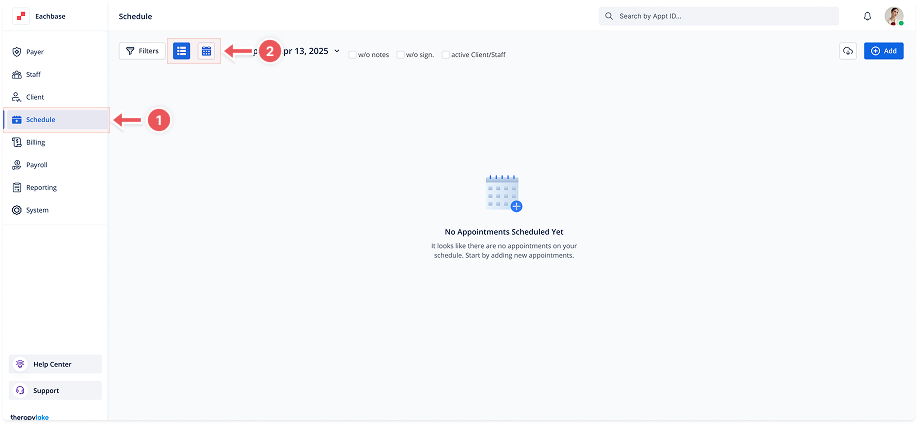
1. Access the Schedule Section
-
Click on the Schedule option in the left pane to navigate to the schedule section.
2. Choose the View Type
At the top of the Schedule page, you will see two icons next to the Filters button:
-
List View Icon: Displays the schedule in a list format, showing appointments in a table with columns for ID, Date/Time, Staff, Client, Event, Status, and Actions.
-
Calendar View Icon: Displays the schedule in a calendar format, organizing appointments by date and time visually.
3. Switch Between Views
-
Click on the List View Icon to see the schedule as a list (this is the default view).
-
Click on the Calendar View Icon to view the schedule in a calendar format.
4. Interacting with the Schedule
-
In List View, you can see more details for each appointment, such as the appointment's ID, date, time, staff, client, and status.
-
In Calendar View, you can see the appointments distributed across the days of the selected day, week or month.
5. Navigation
-
Use the navigation arrows next to the date range at the top to move between different days, weeks or months in the Calendar View.
-
You can also filter appointments using the Filters button to customize what is displayed in either view.