

Deleting Client Contacts
1. Access the Client Section
-
Go to the >Client section in the left panel.
2. Select the Client
-
Choose the client whose contact you want to delete.
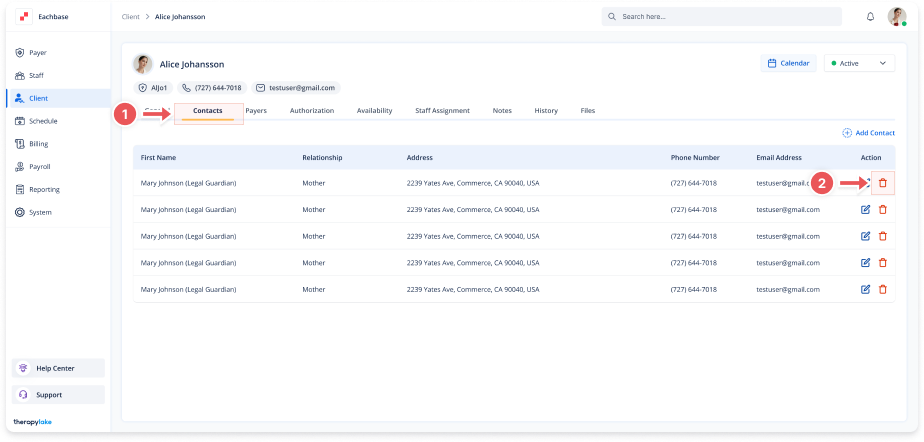
3. Navigate to the Contacts Tab
-
Click on the Contacts tab at the top of the client’s page.
4. Locate the Contact to Delete
-
Find the contact you want to delete in the Contacts table.
5. Delete the Contact
-
Click on the red X icon under the Action column next to the contact’s details.
6. Confirm Deletion
-
A confirmation modal will appear. Click Delete to confirm the deletion of the contact.
7. Review Changes
-
The contact will be removed from the Contacts table.