

Adding a Contact to a Client
1. Access the Client Section
-
Go to the > Client section in the left panel.
2. Select the Client
-
Choose the client for whom you want to add a contact.
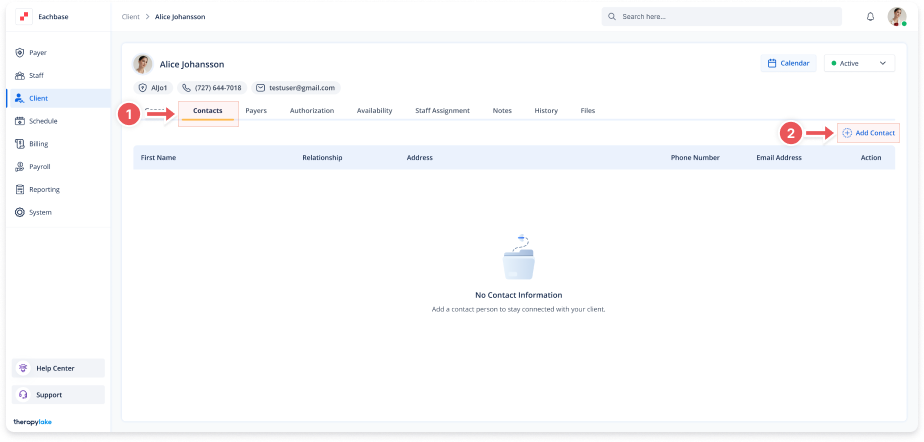
3. Navigate to the Contacts Tab
-
Click on the Contacts tab at the top of the client's page.
4. Add a New Contact
-
Click on the + Add Contact button at the top right of the page.
5. Fill in the Contact Information
-
In the Add Contact modal, complete these fields:
-
First Name: [Enter contact's first name]
-
Last Name: [Enter contact's last name]
-
Phone Number: [Enter contact number]
-
Email: [Enter email address]
-
Relationship: [Select relationship to client]
-
Physical Address: [Enter street address]
-
Unit/Suite #: [Enter if applicable]
-
6. Add the Contact
-
Click the Add button at the bottom right to save.
7. View the New Contact
-
The contact will now appear in the client's Contacts table.