Adding Charge Rates to a Payer
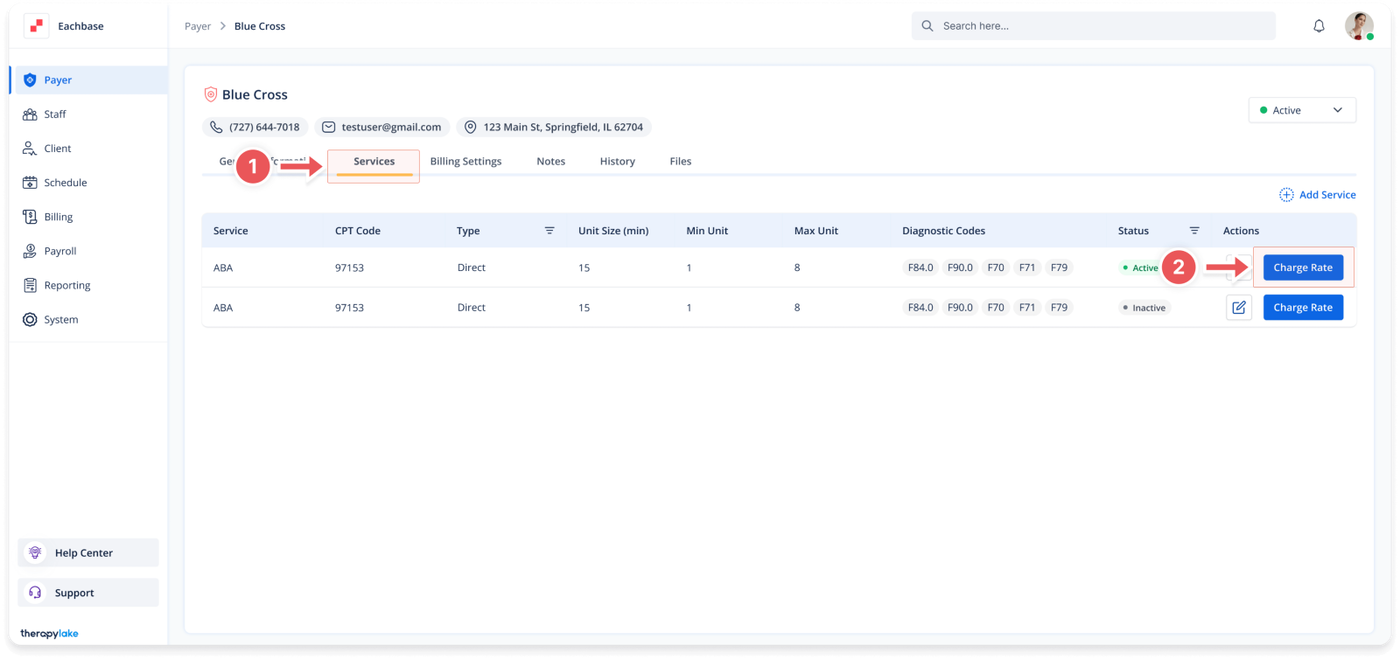
1. Access the Services Tab
-
- Go to the > Payer section in the left panel.
- Select the Payer to which you want to add a service.
2. Add Charge Rates to the Service
-
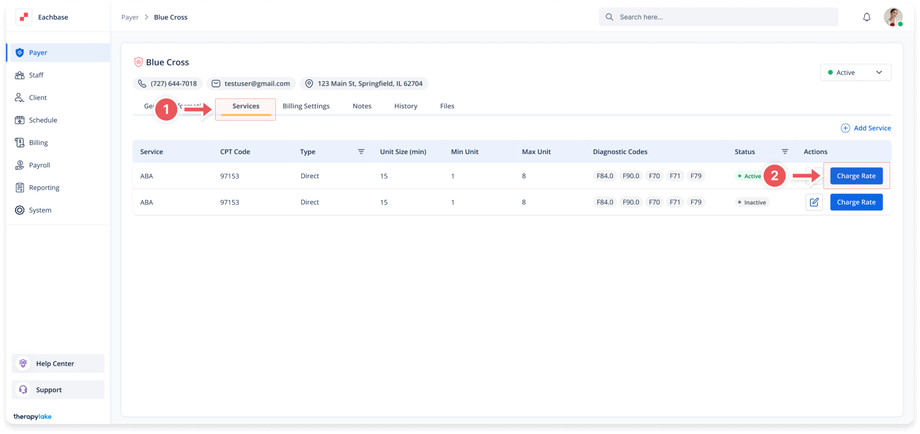
- Select the Services tab at the top of the page.
- Find the service for which you want to add charge rates in the table and click the blue Charge Rates button next to it.
3. Fill Out the Charge Rates
-
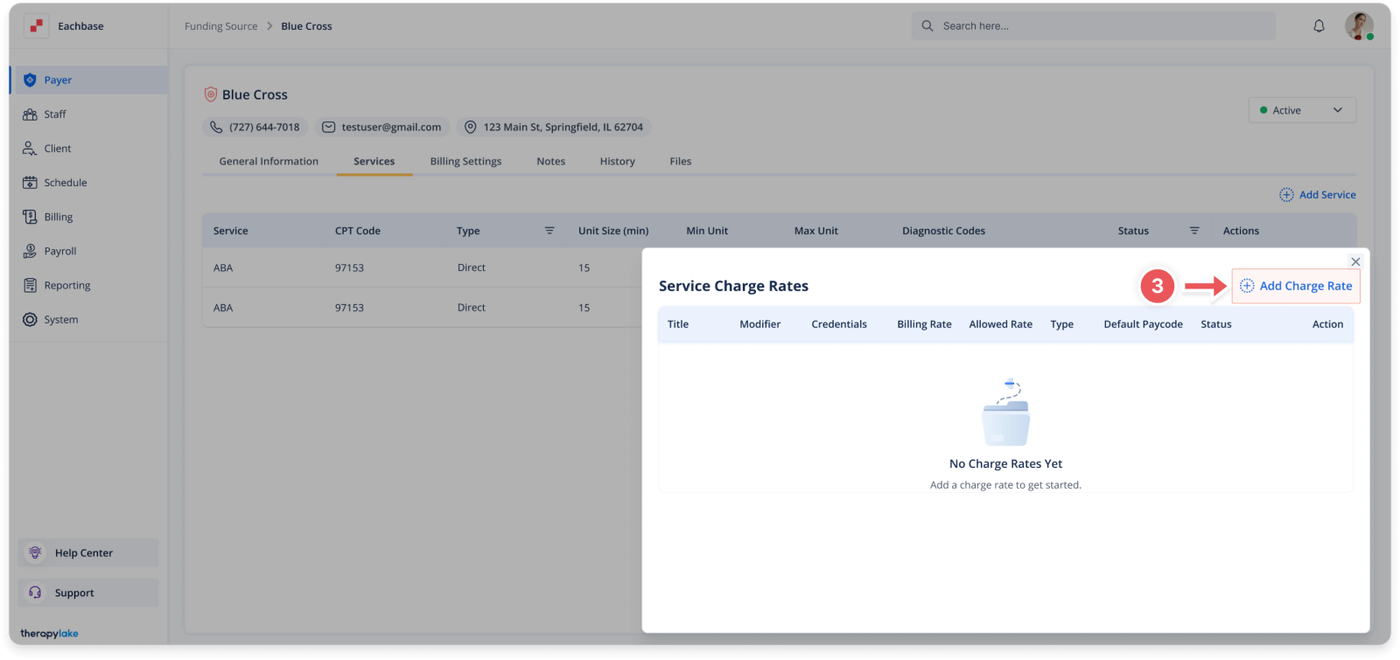
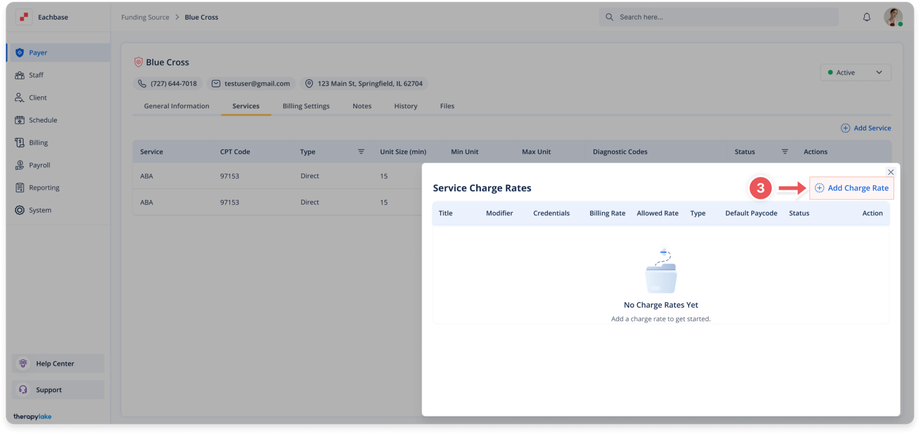
- In the [Service Name] Charge Rates pop-up window, click on the blue + Add Charge Rate button at the top right.
-
- Fill in and select the following fields:
- Title: Enter the title of the charge rate (e.g., "BCBA," "BI," "CM," etc.).
- Modifier Name: Enter the modifier name (e.g., "HM," "HO," "HT," etc.).
- Billed Rate ($): Enter the rate you would like to bill the insurance.
- Allowed Rate ($): Enter the rate you expect to be paid.
- Region: Specify the region (e.g., "Los Angeles").
- Credentials: Choose the corresponding credentials from the list of credentials added under System > Credentials.
- Type: Choose whether the service is a Direct or Indirect service.
- Default Paycode: Choose the corresponding Paycode from the list of Paycodes added under System > Payroll Setup.
4. Save the Charge Rate
-
- Click the Add button to save the charge rate. It will appear in the list for that service.
Was this article helpful?