

Adding Resubmission Details to a Pending Claim
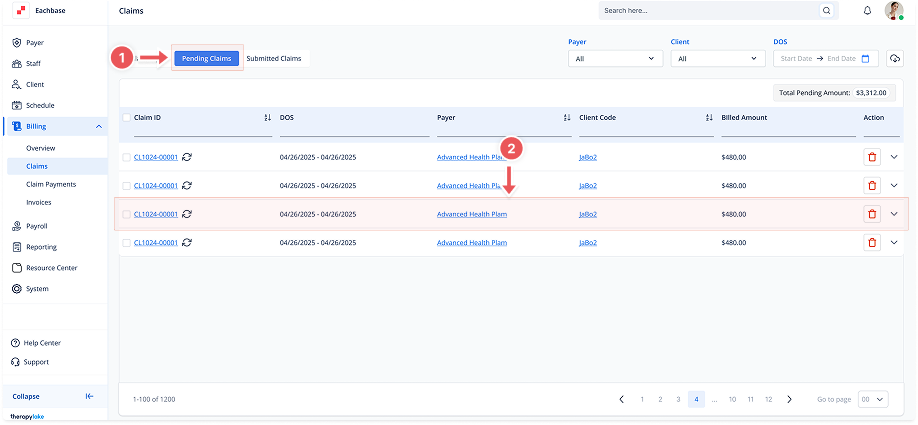
1. Navigate to Pending Claims
-
Go to the left sidebar and click on Billing > Claims > Pending Claims.
2. Select the Pending Claim
-
Locate the claim that requires additional resubmission details from the list.
-
Click on the claim to open the Claim Details view.
3. Open the Edit Modal
-
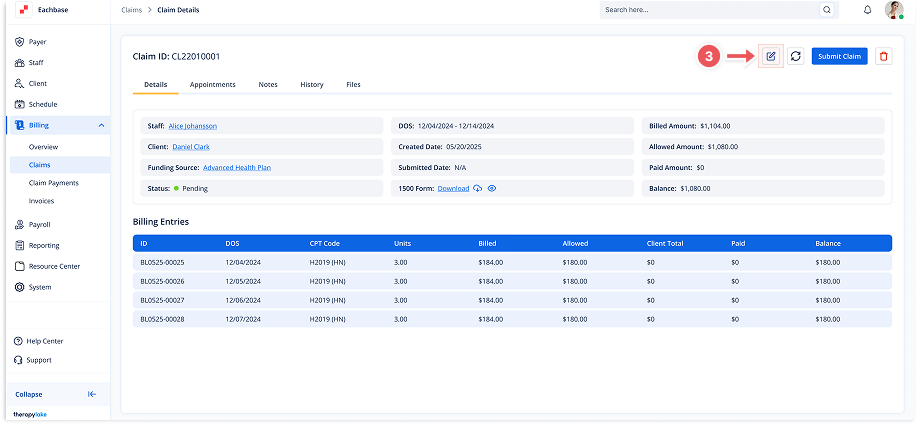
In the Claim Details screen, click the Edit button (pencil icon) in the top-right corner.
-
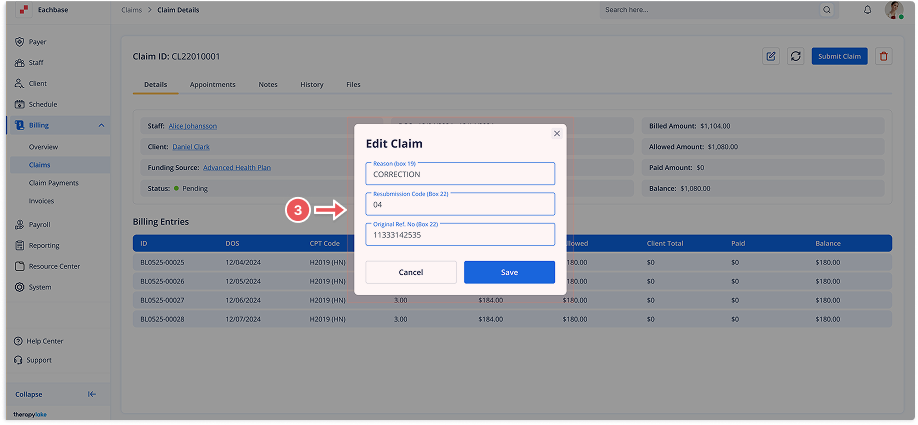
A modal titled Edit Claim will appear, providing fields to input the following details:
-
Reason (Box 19)
-
Resubmission Code (Box 22)
-
Original Ref. No (Box 22)
-
4. Enter Resubmission Details
-
In the Reason (Box 19) field, input the reason for needing to adjust or resubmit the claim.
-
In Resubmission Code (Box 22), enter the relevant code for resubmitting the claim.
-
In Original Ref. No (Box 22), provide the original reference number related to the claim.
5. Save the Information
-
Once the necessary information is filled out, click the Save button to apply the changes.
-
The resubmission details will now be displayed in the Claim Details view with a red background to highlight the changes.
6. Review the Updated Claim
-
After saving, you will see the new resubmission details (Reason, Resubmission Code, and Original Ref. No) reflected under the Additional Claim Info section in the claim details.
-
These fields will not yet submit the claim but will update the record with the necessary information for future actions.