Adding Notes to a Pending Claim
1. Navigate to Pending Claims
-
Go to the left sidebar and click on Billing > Claims > Pending Claims.
2. Select the Pending Claim
-
In the Pending Claims list, click on the specific claim you want to add a note to.
3. Click on the Notes Tab
-
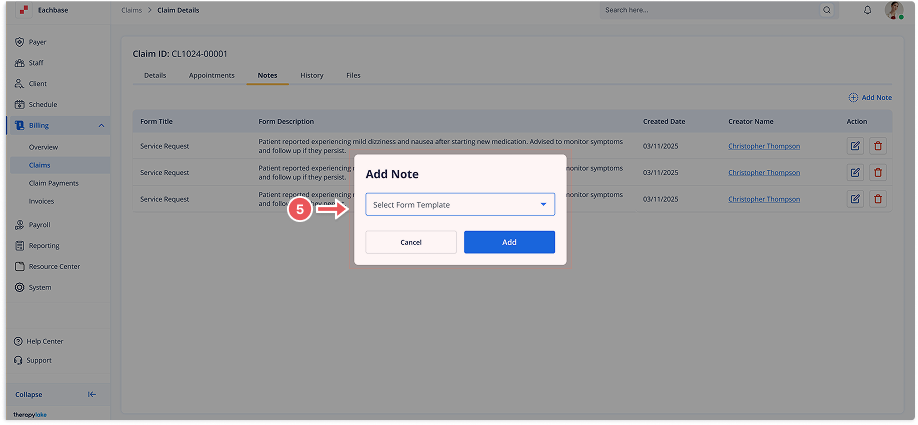
Once in the Claim Details screen, click the Notes tab at the top of the page.
4. Add a New Note
-
Click the Add Note button located in the top-right corner of the Notes section.
5. Select a Form Template
-
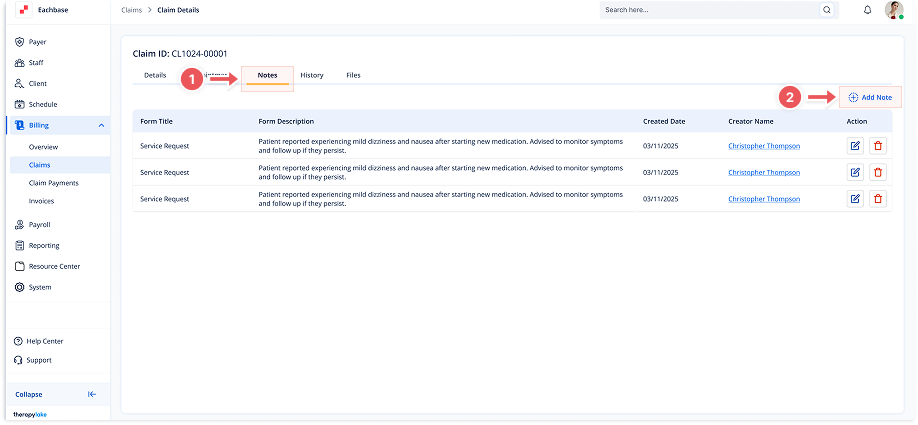
A modal will appear prompting you to select a form.
-
Use the dropdown to choose a predefined Form Template that matches the type of note you want to create.
-
After selecting a form, a form modal will open with fields based on the selected template.
-
Enter the required information for each field.
6. Save the Note
-
Once you've filled in the necessary details, click Save.
-
The new note will appear in the Notes list along with the created date, form title, creator name, and note content.