Adding Staff Files
1. Access the Staff Section
-
- Go to the > Staff section in the left panel.
2. Select the Staff Member
-
- Choose the staff member for whom you would like to upload files.
3. Navigate to the Files Tab
-
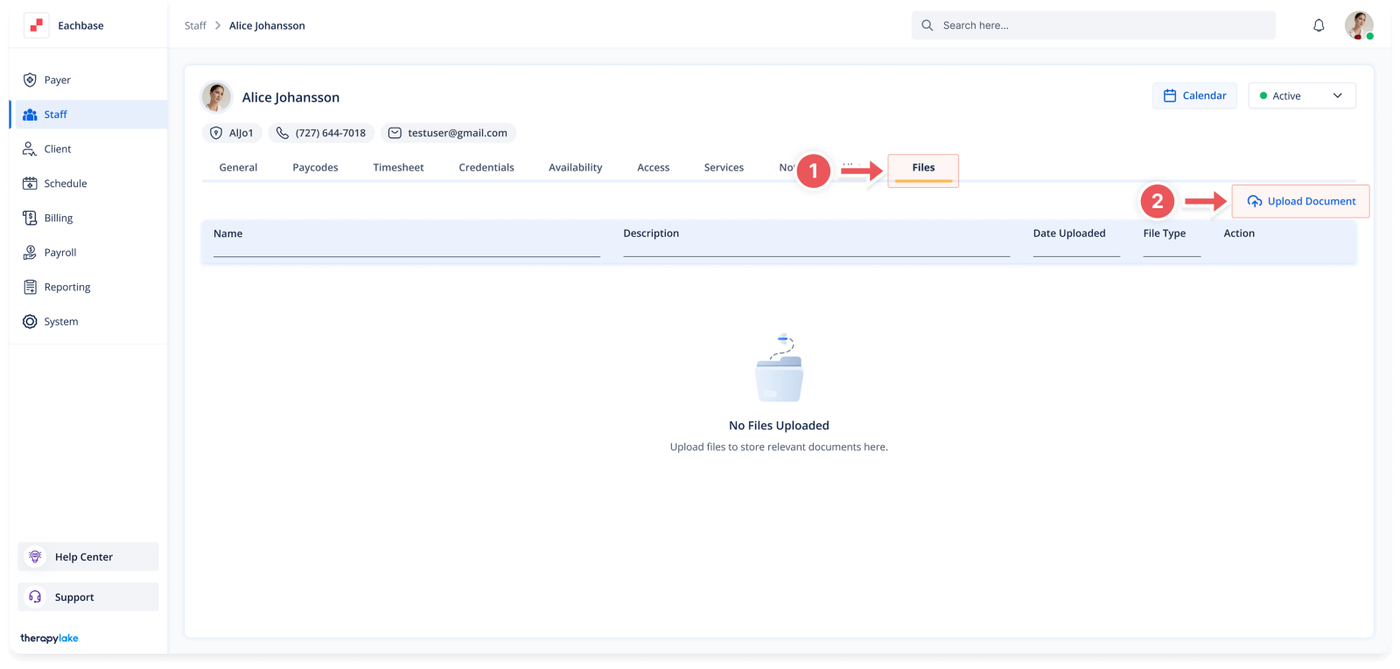
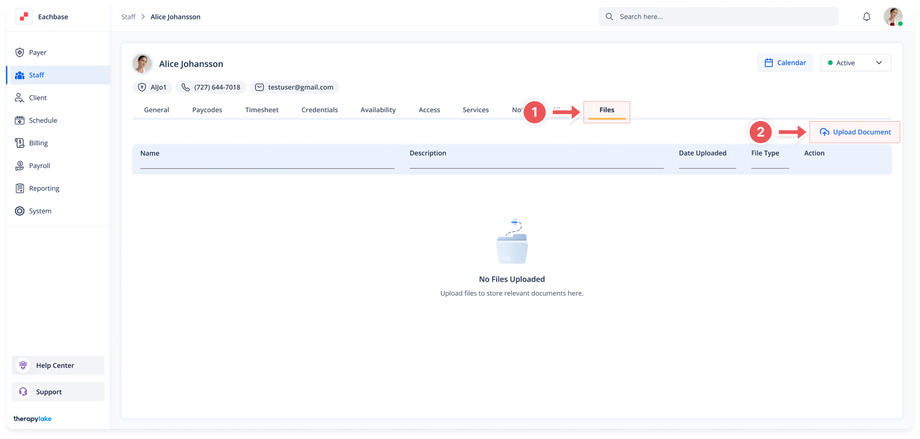
- Click on the Files tab at the top of the page.
4. Upload Files
-
- Click the Upload Document button to add relevant documents or files associated with the staff member.
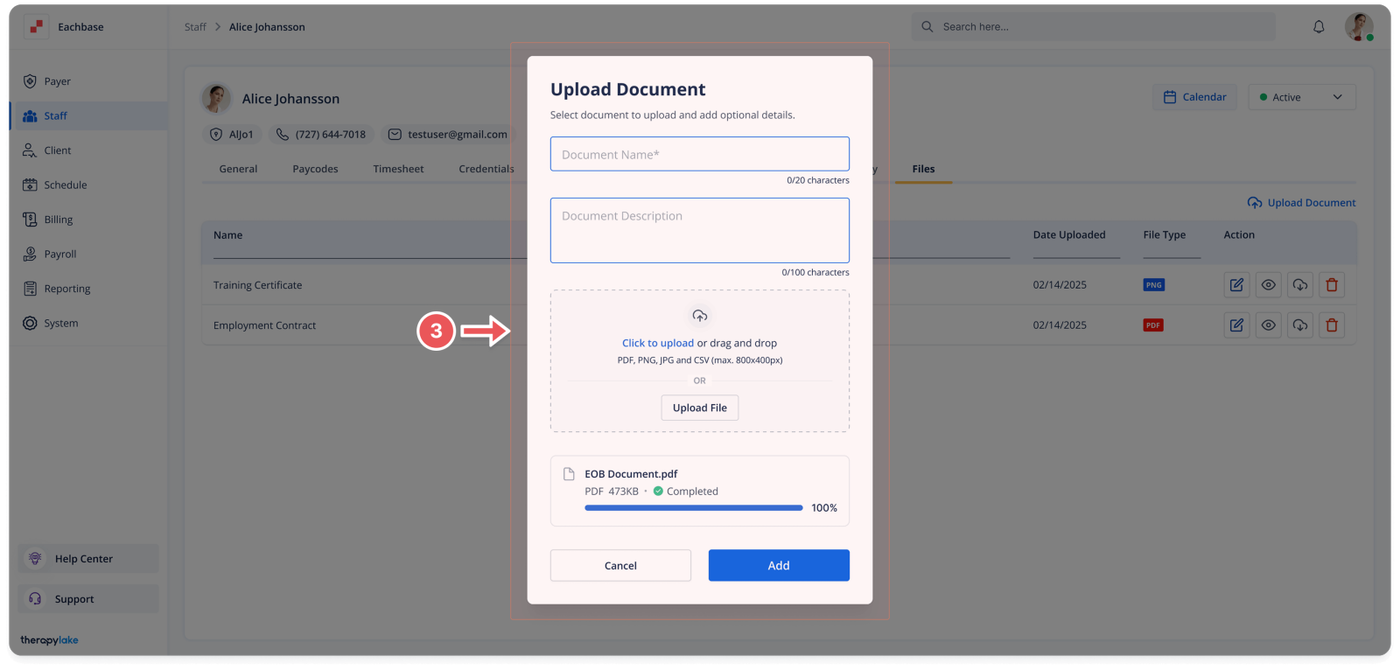
- Once the button is clicked, the Upload Document pop-up window will appear.
5. Fill in the Fields and Upload Files
-
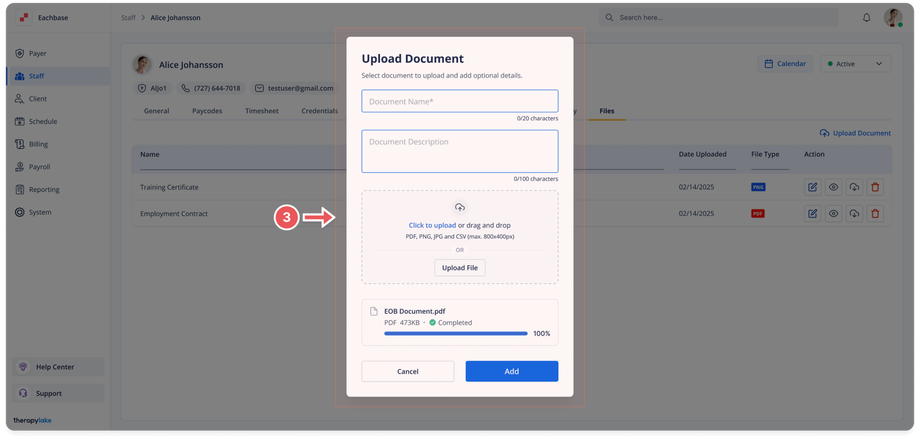
- Fill in the required fields in the Upload Document pop-up window.
- Click to upload or drag and drop the file into the drag and drop box.
6. Review Uploaded Files in the Pop-up window
-
- Once the file is dragged or selected, it will appear at the bottom of the pop-up window.
- Repeat this process for each additional file you would like to upload.
7. Save the Uploaded Files
-
- After adding all the files, click the Add button on the bottom right of the pop-up window.
8. View Uploaded Files
-
- You will see the uploaded files listed in the table under the Files tab for the selected staff member.
Was this article helpful?