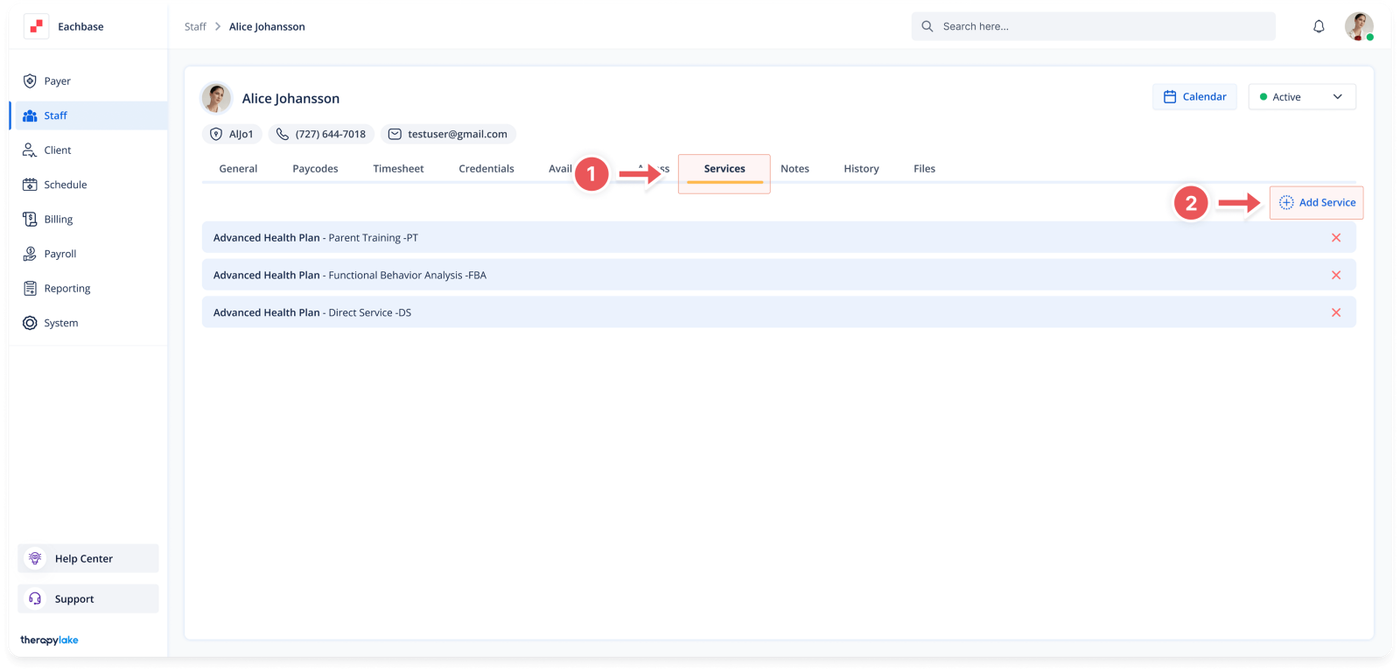
Choose the staff member for whom you would like to add services.
3. Navigate to the Services Tab
Click on the Services tab at the top of the page.
4. Add Services
Click on the Add Service button located above the table on the right side and begin typing or select the service you would like to add from the list.
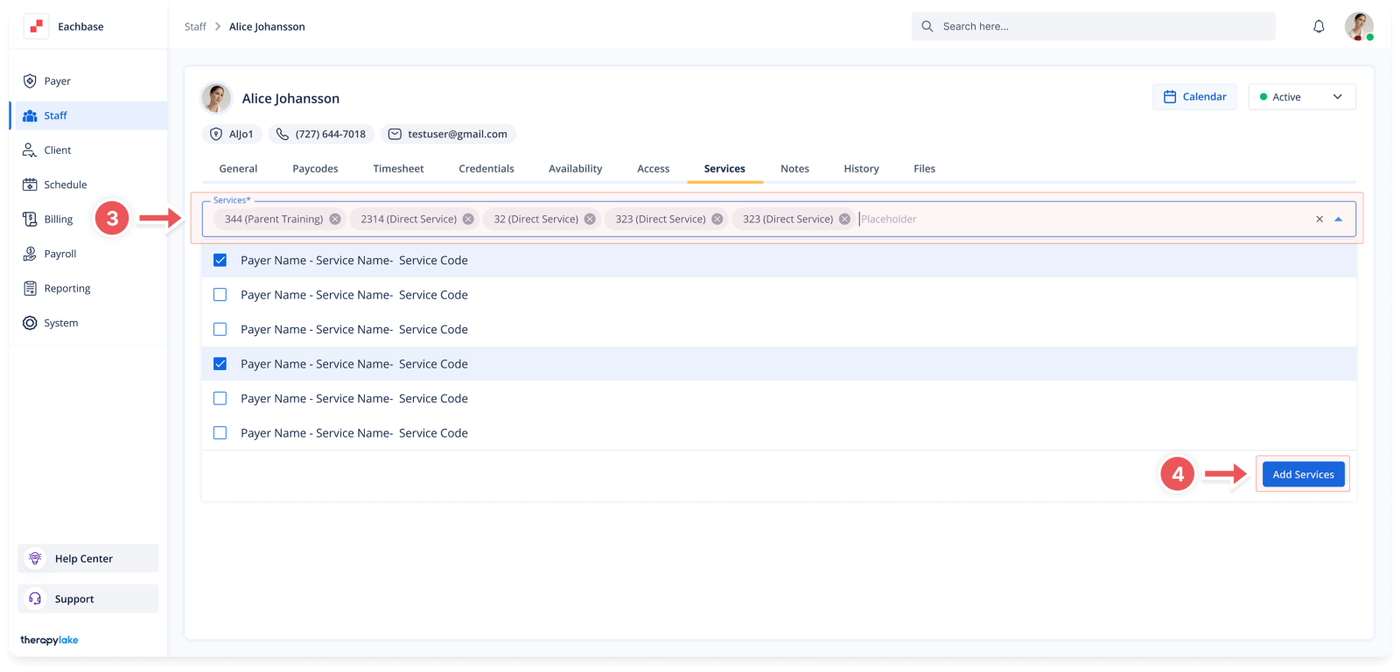
A list of available services will appear. These services are predefined by your organization’s administrators and are tied to funding sources. If you don’t see any services, it means that no services have been added to the system by your organization.
5. Select Multiple Services
You can add multiple services by clicking into the Services field again and selecting additional services.
6. Add Selected Services
Once you have selected all the services you wish to add, click on the Add Services button at the bottom right of the services list dropdown.
If you do not see this button, click on the Services field again, and the dropdown will reappear, allowing you to click on the Add Services button.
7. View Added Services
After adding the services, you will see them appear in the Services list for the selected staff member.