Deleting Staff Member’s Past Employment
1. Access the Staff Section
-
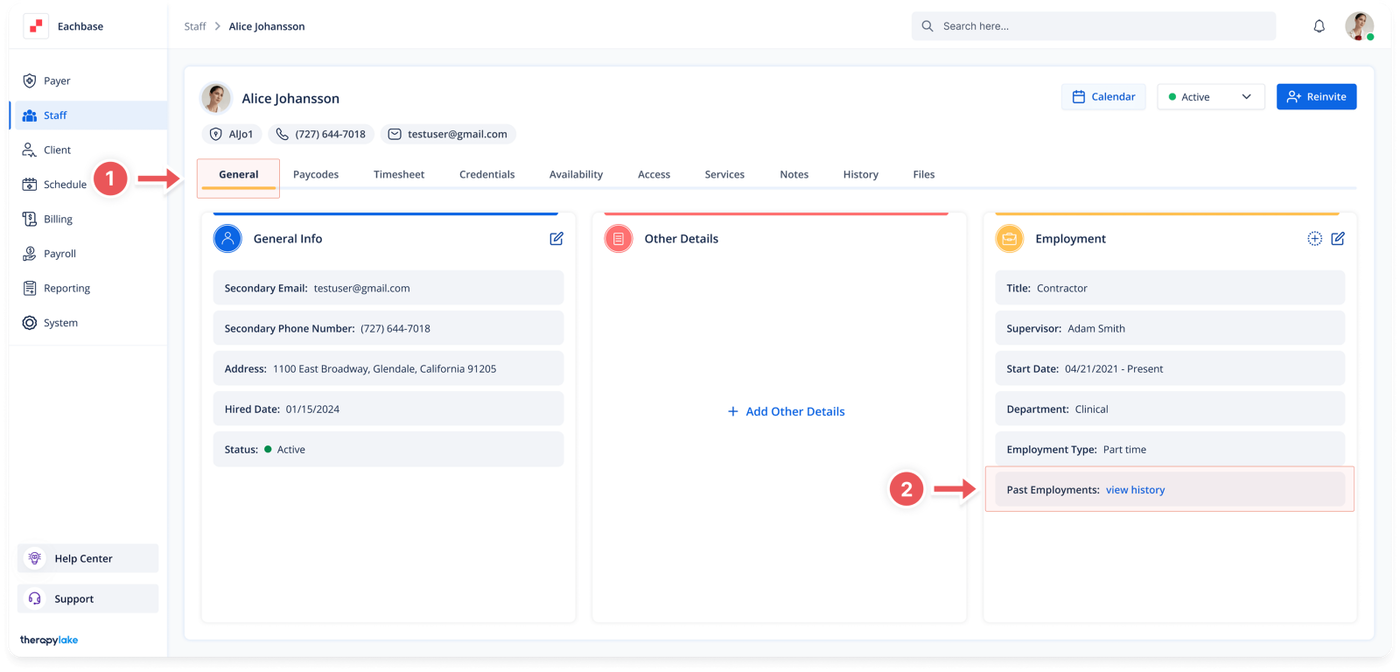
- Go to the > Staff section in the left panel.
2. Select the Staff Member
-
- Choose the staff member whose past employment you want to delete.
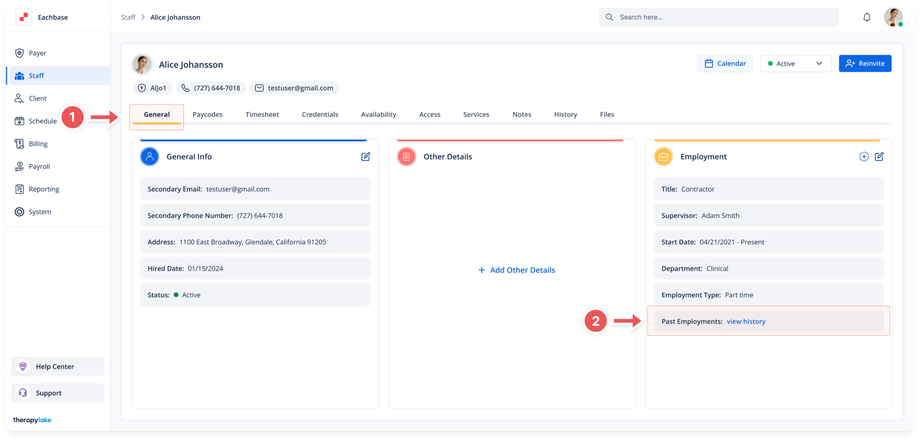
3. Ensure You Are on the General Tab
-
- Make sure that you are on the General tab. If not, click on the General tab at the top of the page.
4. View Past Employment History
-
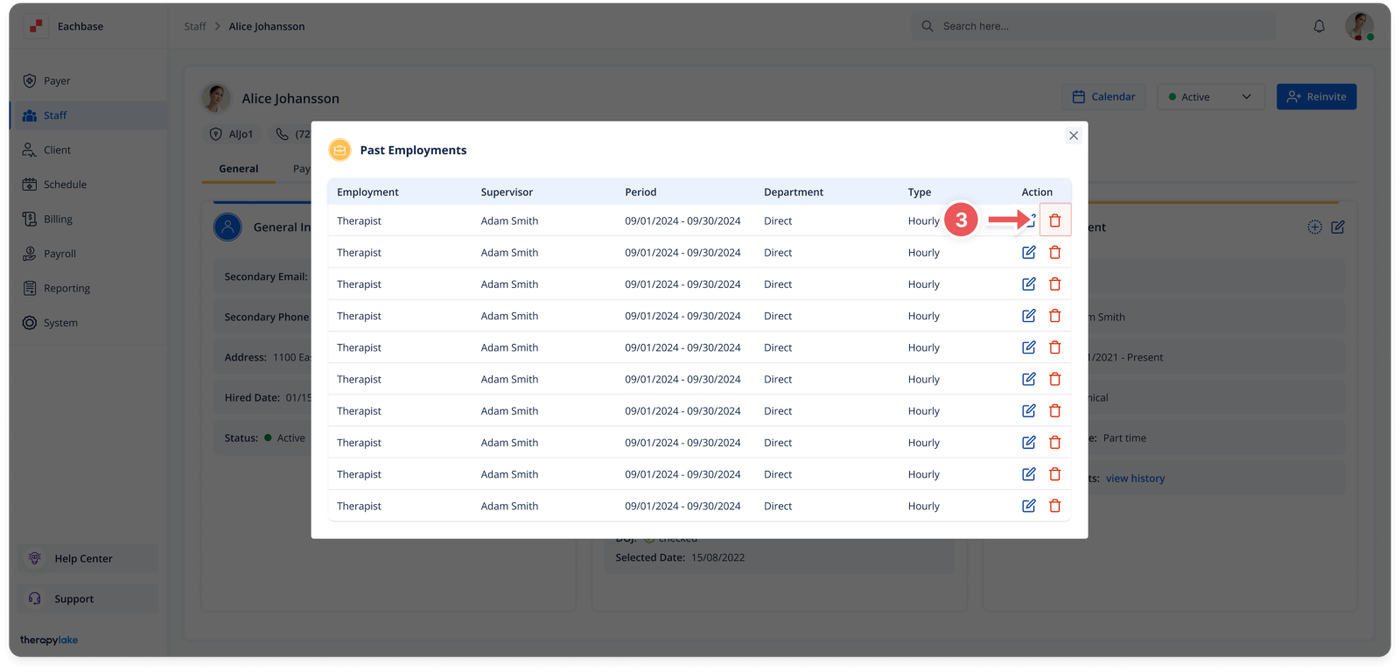
- Click the View History button next to the Past Employments field.
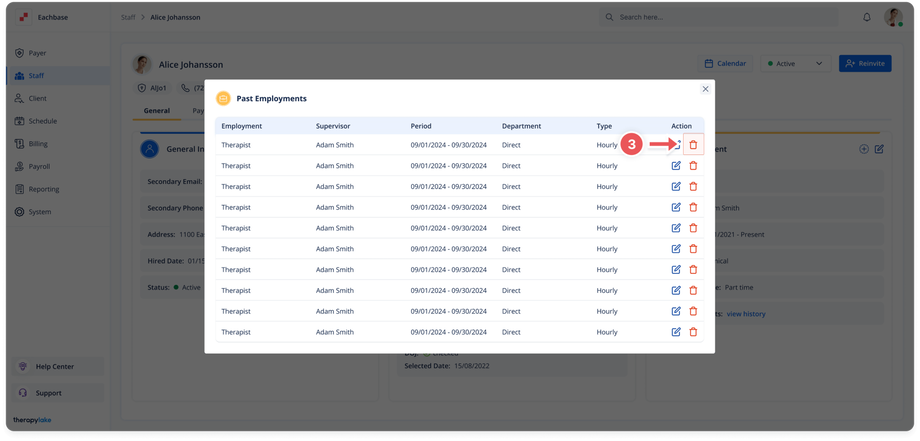
5. Delete the Employment Record
-
- Click on the red trashcan icon next to the employment record you wish to delete.
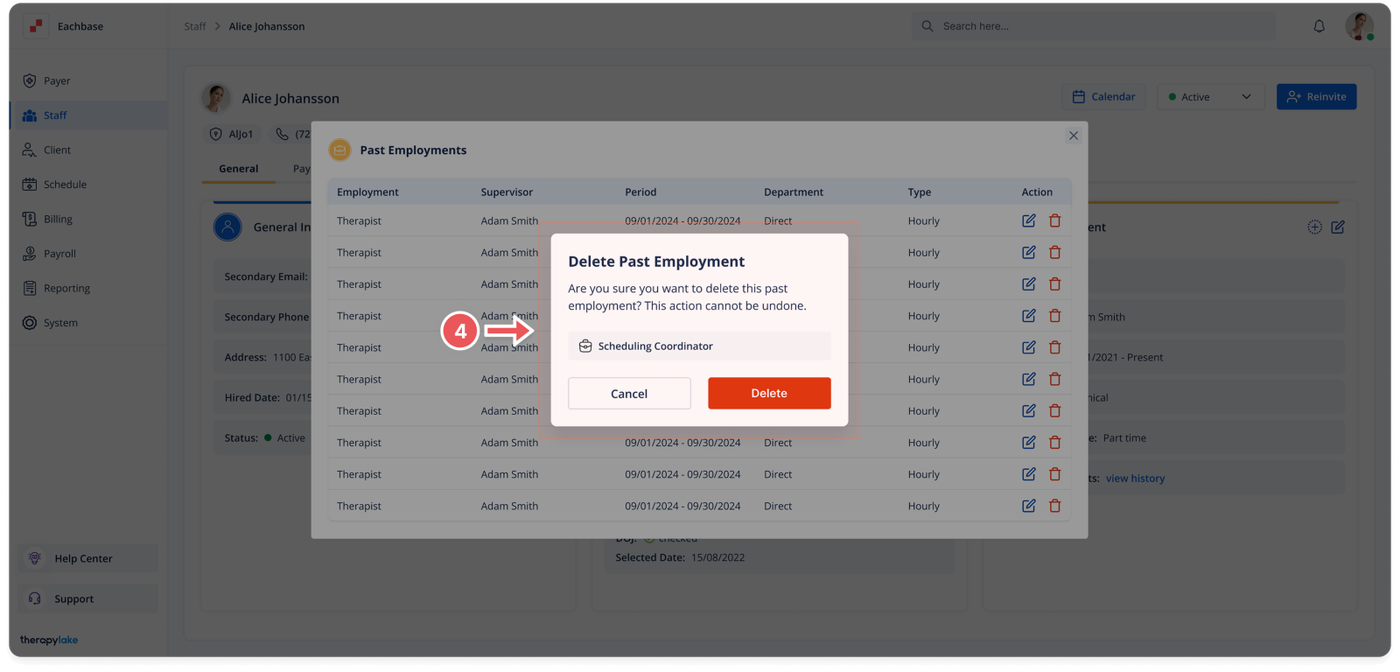
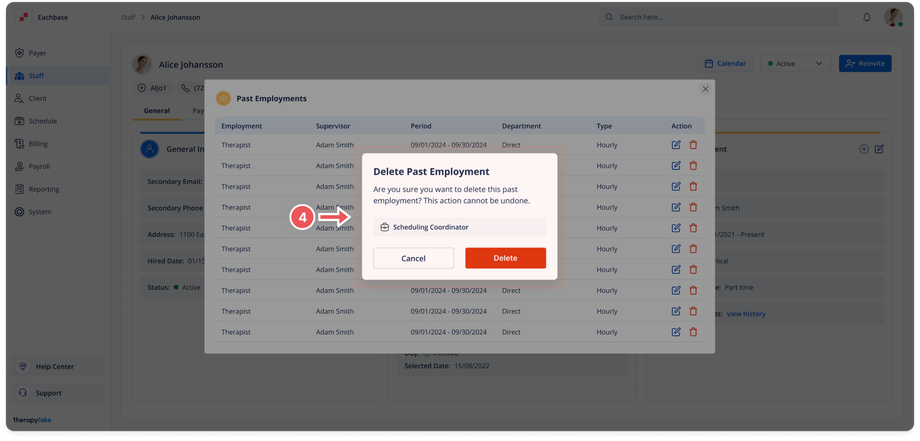
6. Confirm Deletion
-
- A confirmation pop-up window will appear. Click Delete to confirm.
Was this article helpful?