Viewing Billing Overview
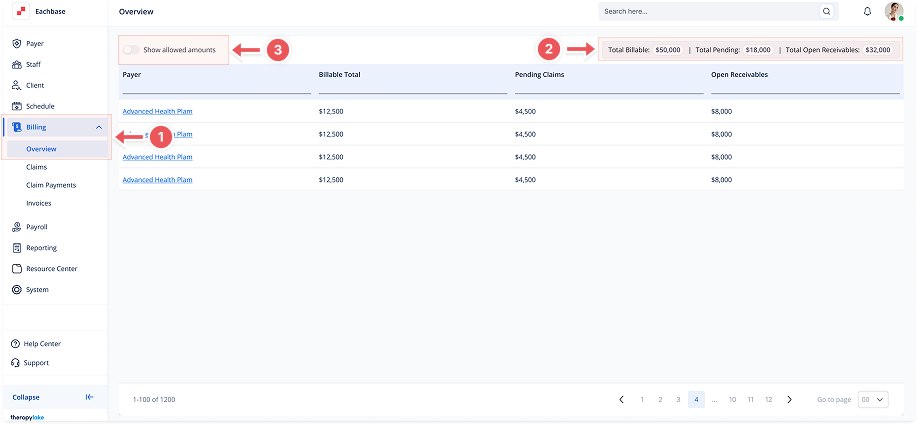
1. Navigate to Billing Overview
-
Go to the left sidebar and click on Billing > Overview.
2. Understand the Billing Overview Table
The Billing Overview page provides a high-level summary of billing data broken down by payer. It includes the following columns:
-
Payer – The name of the funding source or insurance provider.
-
Billable Total – The total dollar amount that has been marked as billable.
-
Pending Claims – The total amount currently in claim submission status.
-
Open Receivables – The remaining balance that is expected to be collected.
At the top-right corner of the table, you'll see aggregated totals for:
-
Total Billable
-
Total Pending
-
Total Open Receivables
3. Toggle Allowed Amounts
Use the Show allowed amounts toggle at the top-left of the table to switch between actual billed values and allowed amounts.
-
When the toggle is OFF, you see totals based on the full billable values.
-
When the toggle is ON, values are calculated based on payer-specific allowed amounts.
This view helps billing teams get a quick, actionable snapshot of the clinic’s outstanding balances and claim statuses across all payers.