Adding Staff Member’s Current and Past Employment
1. Access the Staff Section
-
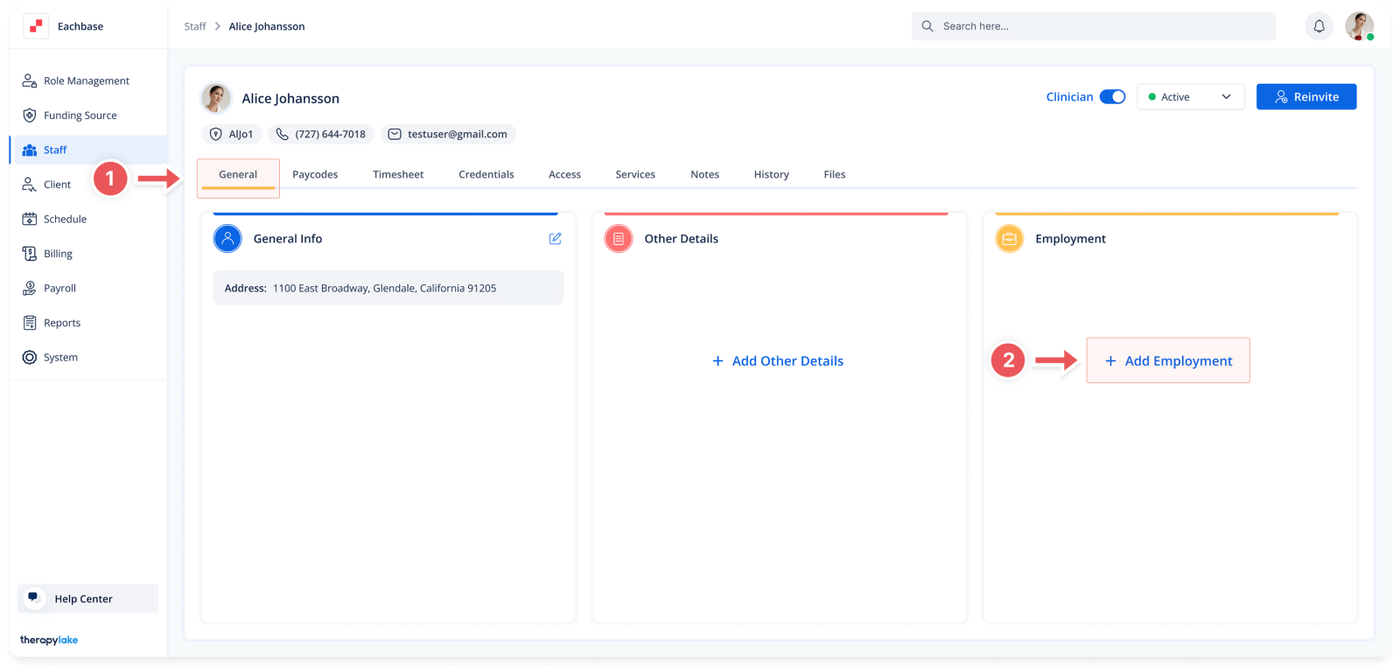
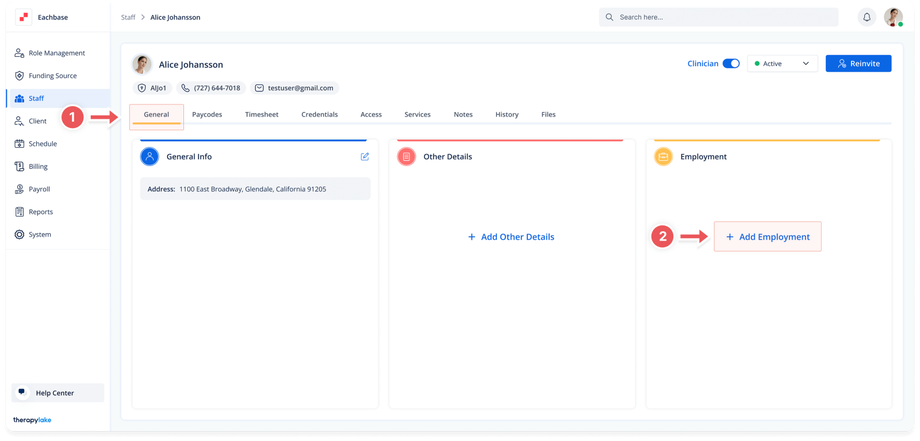
- Go to the > Staff section in the left panel.
2. Select the Staff Member
-
- Choose the staff member for whom you would like to add employment information.
3. Ensure You Are on the General Tab
-
- Make sure that you are on the General tab. If not, click on the General tab at the top of the page.
4. Add Employment Information:
-
- Navigate to the rightmost box labeled Employment.
- Click on the + Add Employment button on the right of the Employment box.
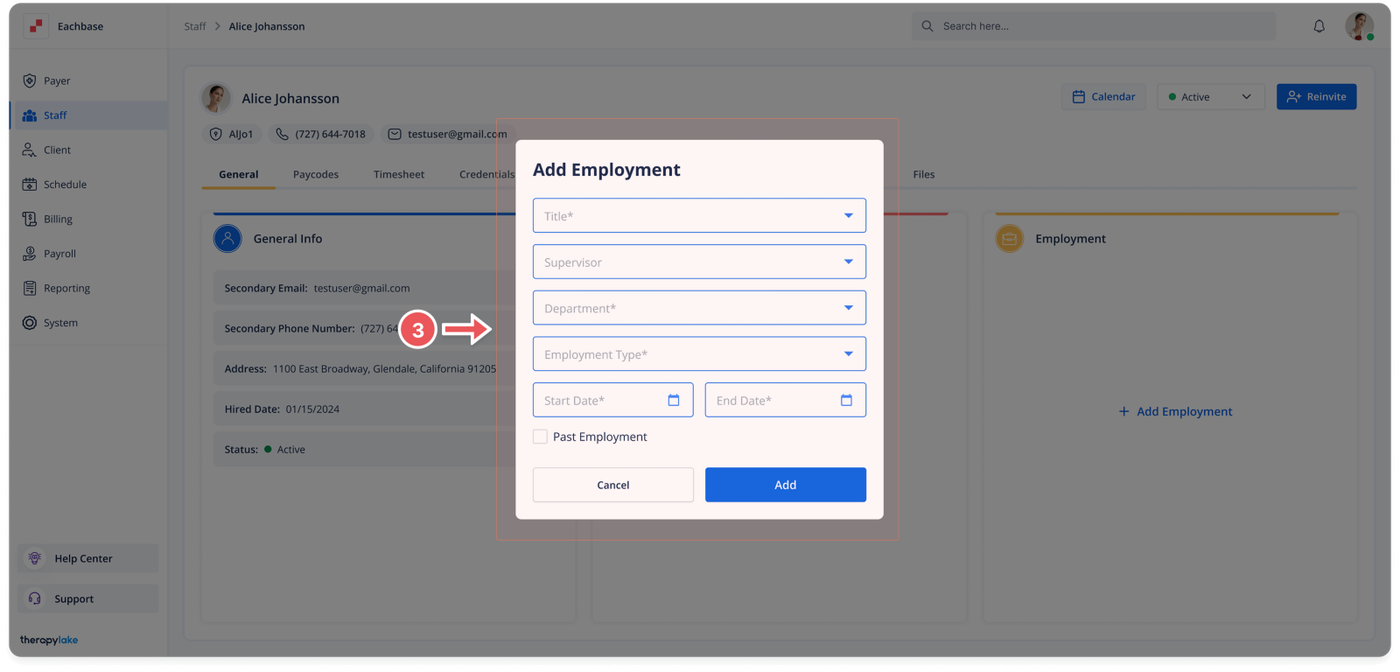
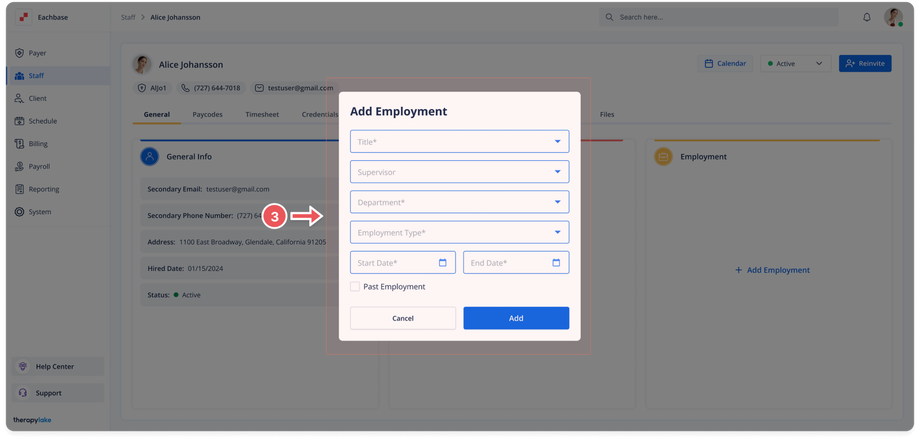
- The Add Employment pop-up window will appear.
5. Fill in Employment Details
-
- Select the values for the fields
- Title: Choose a title for the staff member.
- Supervisor: Select the supervisor for this staff member during the employment period.
- Employment Type: Choose whether they were Full-Time, Part-Time, Intern, or Contractor.
- Start Date: Enter the start date of employment.
- End Date: Enter the end date of employment. If this is a current position, leave this blank.
- Past Employment: Select the checkbox if this is a past employment position.
6. Save Employment Information:
-
- Click Add on the bottom right of the Add Employment pop-up window.
7. View Updated Employment Information:
-
- The new employment details will be added to the system and displayed in the Employment section.
Was this article helpful?