Adding a Drive Time Appointment (single)
1. Navigate to the Schedule Section
-
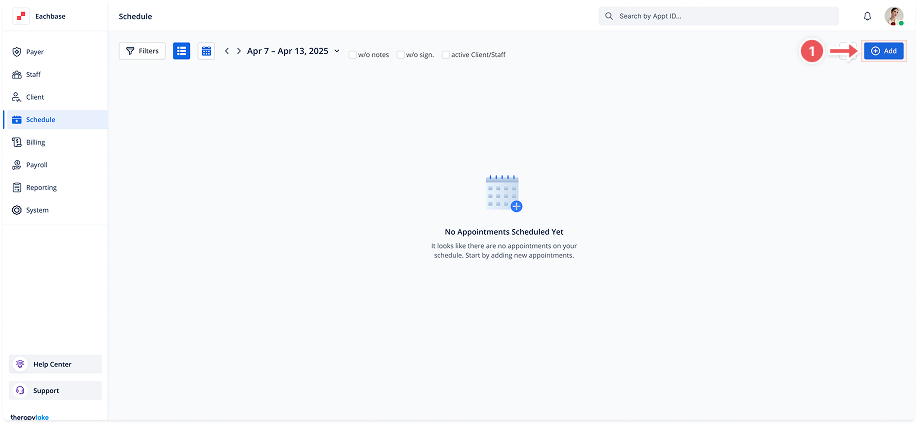
Click on Schedule from the left-side navigation panel.
2. Open the 'Add Appointment' Modal
-
Click on the Add Appointment button located in the top right corner of the schedule view.
3. Select Drive Time as the Event Type
-
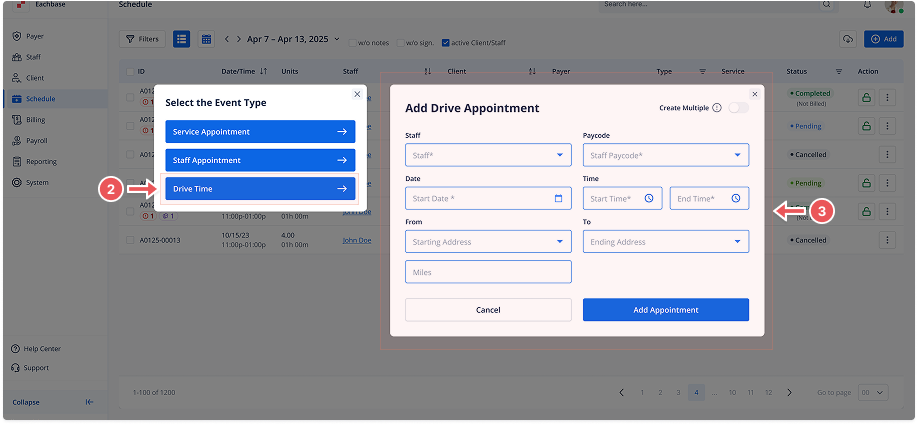
A modal titled Select the Event Type will appear.
-
In the pop-up modal, choose Drive Time as the event type.
4. Fill in Appointment Details
In the Add Drive Appointment modal, fill in the required details:
-
Staff Member: Select the staff member from the dropdown.
-
Staff Paycode: Choose the appropriate pay code from the dropdown.
-
Start Date: Choose the date from the date picker.
-
Start Time: Enter the start time.
-
End Time: Enter the end time.
-
From: Enter the starting Address.
-
To: Enter the ending Address.
-
Miles: Enter the number of miles.
5. Add the Appointment
-
Click the Add Appointment button to save the appointment.
6. Confirmation
-
The new drive appointment will now appear in the schedule list or calendar view.