Editing a Template/Series of Appointments (Except Service Appointments)
To edit a template or a series of appointments (such as Staff, Break, Sick Time, Paid Time Off, Unpaid Time Off, Drive Time) in the system, follow these steps:
1. Open the Edit Modal
-
Navigate to the appointment you want to edit.
-
Click the edit icon (pencil) to open the Edit [Appointment Type] Appointment modal.
-
In this initial screen, you can edit details like Staff Member, Staff Paycode, Start Date, and Time.
2. Toggle 'Edit Template'
-
If you want to edit the entire template series, toggle the Edit Group option.
-
This will change the modal to Edit [Appointment Type] Appointment (Series) mode, allowing for batch modifications.
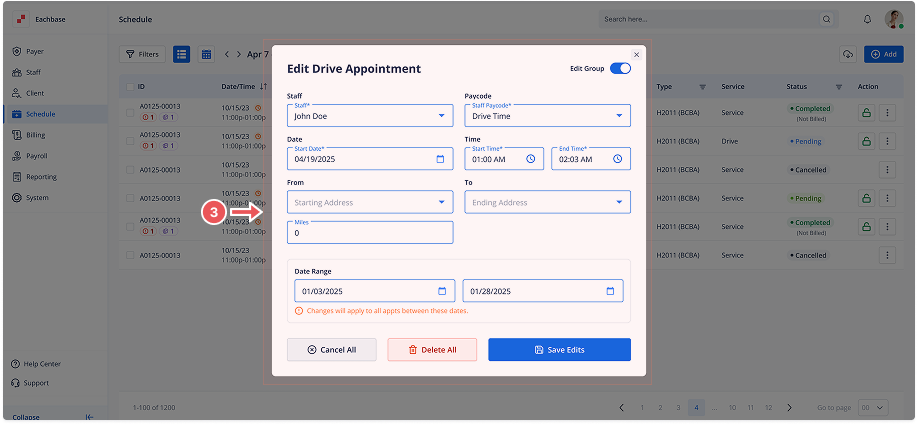
3. Adjust Details
-
Adjust the required fields, such as Start Time and End Time, to apply changes to all appointments in the series.
-
For Drive Time appointments, an additional field for Mileage will be available to edit. Make sure to update the mileage value if needed.
4. Select Options
-
Choose either Cancel All Appointments or Delete All Appointments associated with this template if needed. These options allow you to either cancel or delete the entire series.
5. Update the Series
-
After making all necessary changes, click Update to apply them to all associated appointments in the series.