

Adding Payers to Clients
1. Access the Client Section
-
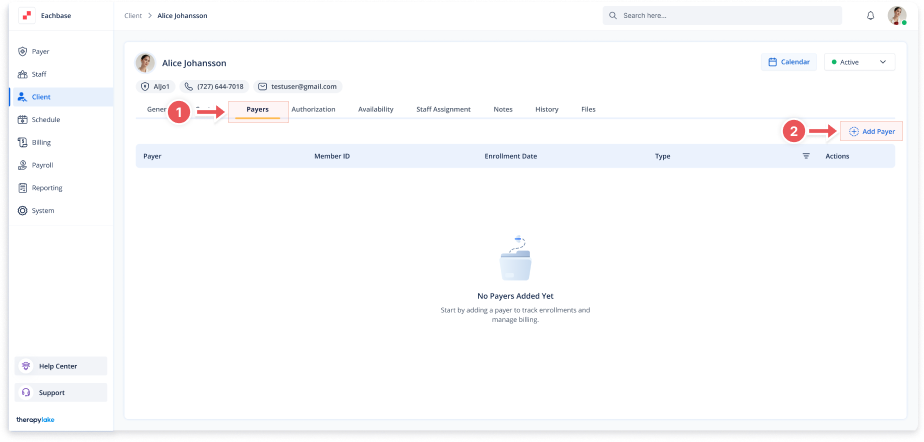
Go to the > Client section in the left panel.
2. Select the Client
-
Choose the client for whom you want to add a payer.
3. Navigate to the Payers Tab
-
Click on the Payers tab at the top of the client's page.
4. Add a New Payer
-
Click the + Add Payer button to open the payer details model.
5. Fill in the Payer Information
-
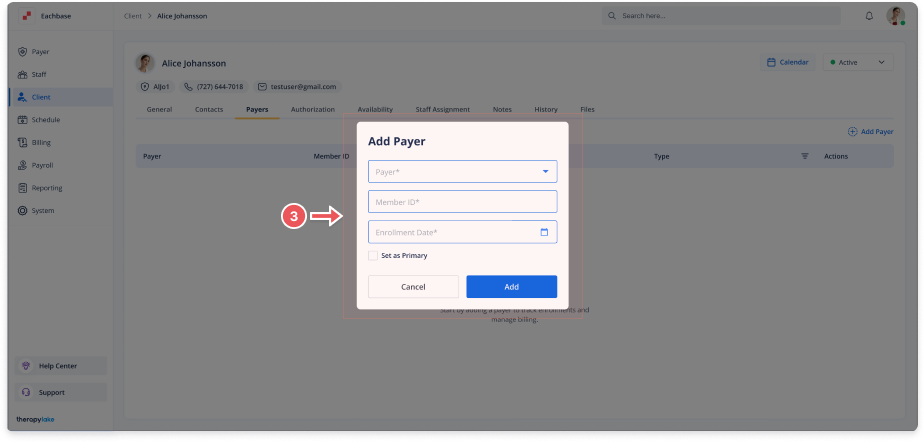
In the Add Payer model, fill in the required fields:
-
Payer Name: Enter the name of the payer.
-
Member ID: Enter the payer's unique identifier (if applicable).
-
Enrollment Date: Enter the date in MM/DD/YYYY format.
-
- Check the Set as Primary checkbox if this payer should be marked as the primary payer.
6. Save the Payer
-
Click the Add button at the bottom right of the model to save the payer.
7. View the New Payer
-
The newly added payer will appear in the Payers tab. If marked as primary, it will be highlighted as the primary payer.