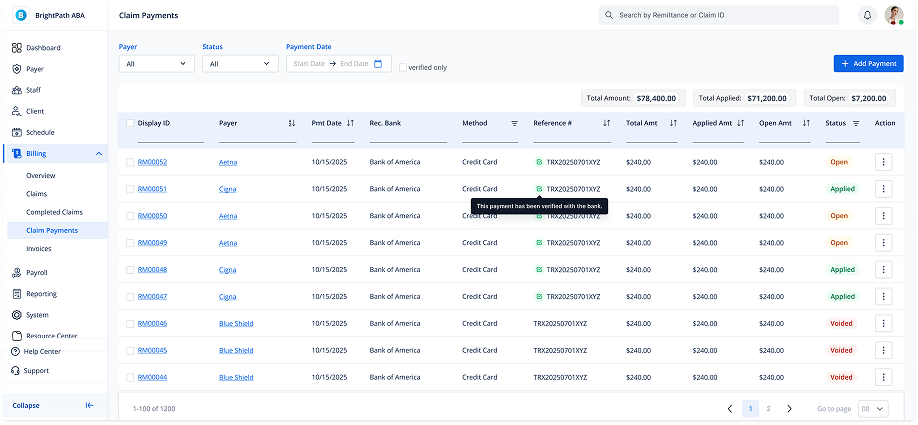
Viewing the Claim Payments List
1. Navigate to Claim Payments
-
Go to Billing > Claim Payments in the left sidebar to access all payment records.
2. Use Filters and Search
You can filter payment records using:
-
Payer
-
Status (Open, Applied, Voided, etc.)
-
Payment Date
-
Verified Only toggle
-
Search (by Remittance or Claim ID)
At the top right, you'll see:
-
Total Payment
-
Total Applied
-
Total Open
3. View Claim Payments Table
The claim payment list displays key information in a table, including:
-
Display ID
-
Payer
-
Payment Date
-
Bank
-
Payment Method
-
Reference #
-
Total Paid
-
Applied Amount
-
Open Amount
-
Status
-
Actions (via More icon ...)
4. Status and Available Actions
Each payment’s status is shown in color-coded tags:
-
🟡Open – Payment is created but not fully applied.
-
🟢Applied – Payment has been fully distributed to claims.
-
🔴Voided – Payment has been voided and removed from all applied claims.
Click the More icon (…) at the end of each row to access available actions:
-
If the status is Open:
-
✅Edit payment details
-
✅Verify the payment
-
-
If the status is Applied:
-
❌Cannot edit
-
✅Verify only
-
-
If the status is Voided:
-
✅Edit payment details
-
✅Verify the payment
-