Uploading Files in Invoices
1. Navigate to the Invoices Section
-
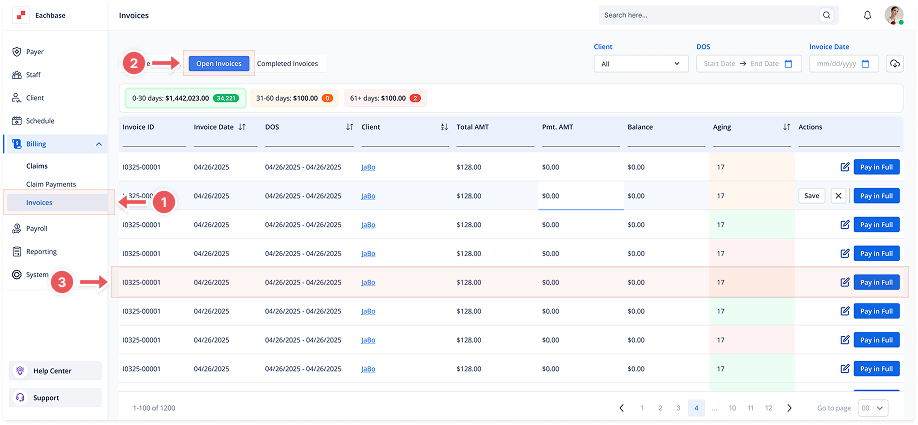
Go to the Billing section in the left pane and click on Invoices.
2. Click on the Open Invoices Tab
-
At the top of the page, click the Open Invoices tab to view the list of Open Invoices.
3. Open the Invoice Details
-
Click anywhere on the invoice line to open its details.
4. Go to the Files Tab
-
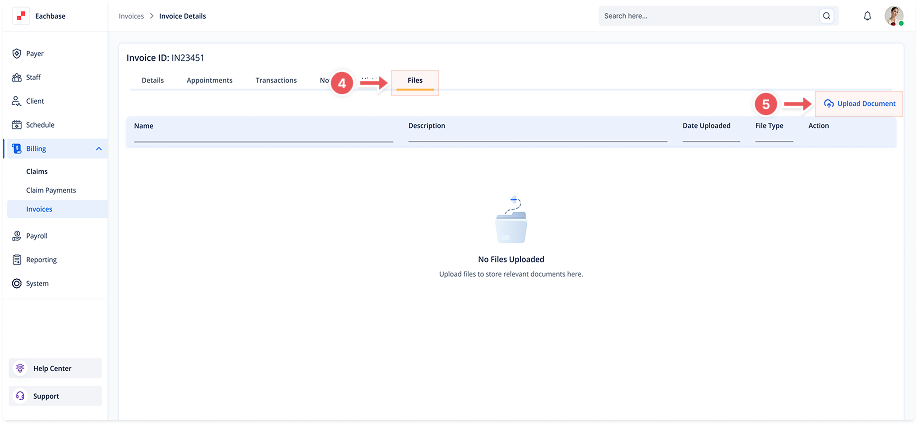
Once inside the invoice details, select the Files tab.
5. Click the Upload Document Button
-
Click the Upload Document button in the top right corner of the Files section.
6. Fill in the Document Details
-
In the modal that appears, enter the Document Name and an optional Document Description.
7. Upload the Document
-
Either click on the Click to upload area or drag and drop your file (PDF, PNG, JPG, or CSV, with a maximum size of 800×400px) into the box.
-
To upload multiple files, repeat this process by dragging and dropping more documents.
8. Click Add
-
Click the Add button to upload the document.