

Editing Appointments (Except Service Appointments)
Editing appointments such as Staff, Sick Time, Break, Paid Time Off (PTO), Unpaid Time Off (UTO), and Drive Time follows a similar process. These types of appointments have a straightforward editing process compared to Service Appointments, which have a more complex workflow.
1. Navigate to the Schedule
-
Go to Schedule from the left-hand menu.
2. Select the Appointment to Edit
-
Locate the appointment you want to edit from the list.
-
Click on the Edit icon (pencil icon) next to the appointment. This will open the Edit Appointment modal.
3. Edit Appointment Details
-
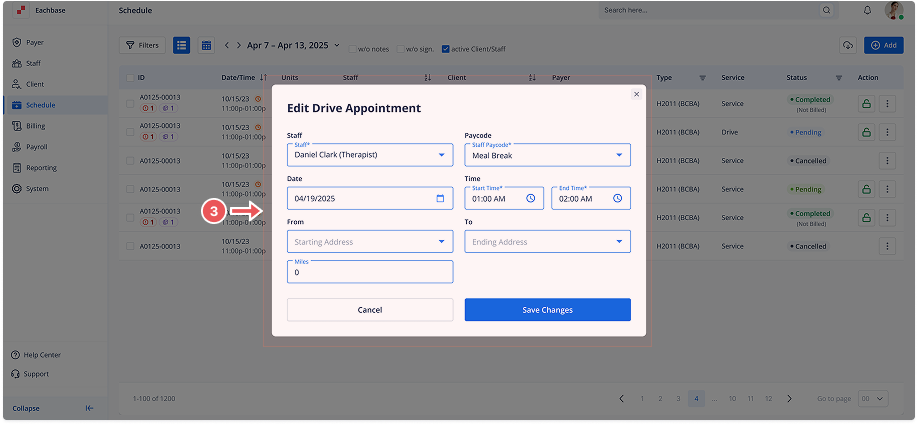
In the Edit Appointment modal, you can modify the following fields:
-
Staff Member: Select the staff member assigned to this appointment.
-
Staff Paycode: Choose the appropriate paycode (e.g., hourly, salary).
-
Start Date: Set or change the start date.
-
Start Time: Adjust the start time.
-
End Time: Adjust the end time.
-
4. Additional Fields for Specific Appointment Types
-
Drive Time Appointment: If you are editing a Drive Time appointment, there will be additional fields for Mileage, Starting and Ending Addresses. Enter the information associated with the drive time.
5. Save Changes
-
After making the desired changes, click the Save button to update the appointment.
6. Cancel Changes
-
If no changes are needed, click the Cancel button to exit without saving.
🔔 Important Notes
-
This guide applies to editing Staff, Sick Time, Break, Paid Time Off, Unpaid Time Off, and Drive Time appointments.
-
Service Appointments are handled differently and are not covered in this section.
- The Drive Time Appointment includes an extra field for Mileage that other appointment types do not have.