

Locking/Unlocking Single Appointments
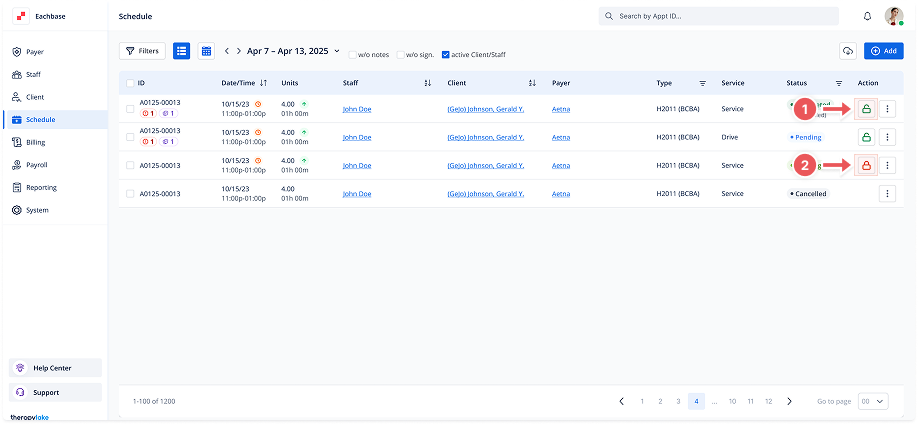
1. Navigate to the Schedule Section
-
Click on Schedule from the left-side navigation panel.
2. Select the Appointment
-
Identify the appointment you want to lock or unlock.
3. Lock the Appointment
-
Click the green Unlock icon (a green lock) under the Actions column for the appointment.
-
A Confirm Lock Action modal will appear.
-
Click Lock to confirm. The icon will change to a red lock, indicating the appointment is locked.
4. Unlock the Appointment
-
Click the red Lock icon (a closed red lock) under the Actions column for the appointment.
-
A Confirm Unlock Action modal will appear.
-
Click Unlock to confirm. The icon will change back to a green lock, indicating the appointment is unlocked.