Submitting Pending Claims
You can submit a pending claim in two ways: from the Claim Details page or directly from the Pending Claims list.
Option 1: Submit from the Claim Details Page
1. Navigate to Pending Claims
-
Go to the left sidebar and click on Billing > Claims > Pending Claims.
2. Select the Claim
-
Locate the claim you wish to submit and click on it to open its details.
3. Review Claim Details
-
Inside the Claim Details screen, review all information such as billing entries, units, and amounts.
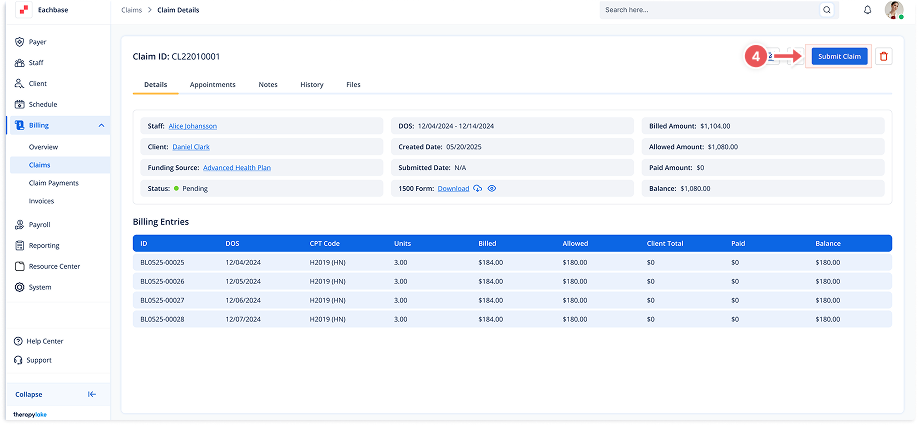
4. Submit the Claim
-
Click on the Submit Claim button at the top-right corner.
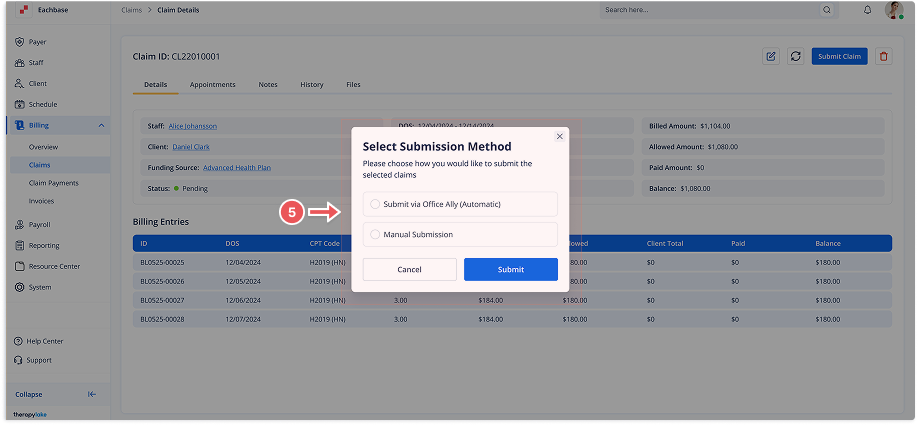
5. Select Submission Method
-
Choose Office Ally (Automatic) or Manual.
6. Confirm Submission
-
A modal will appear for confirmation. Click Submit to proceed.
Option 2: Submit from the Pending Claims List
1. Navigate to Pending Claims
-
Go to the left sidebar and click on Billing > Claims > Pending Claims.
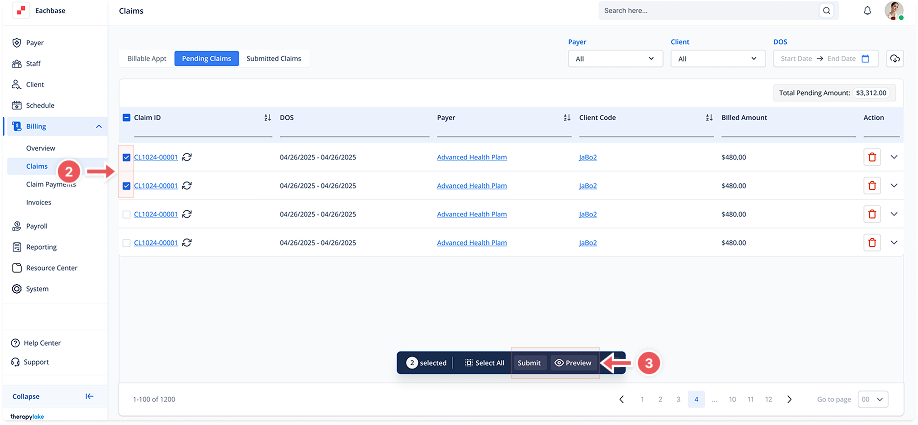
2. Select One or More Claims
-
Use the checkboxes on the left side of the list to select one or multiple claims.
3. Use the Action Bar
-
Once selected, a bar will appear at the bottom of the screen with available actions.
4. Preview Claims
-
Click Preview to view the 1500 Form for the selected claim(s) before submitting.
5. Submit Selected Claims
-
Click Submit to proceed with submission for all selected claims.
6. After Submission
-
Submitted claims will automatically move to the Submitted Claims section.
-
You can track payment updates from the Claim Payments section.