Adding Multiple Drive Time Appointments
1. Navigate to the Schedule Section
-
Click on Schedule from the left-side navigation panel.
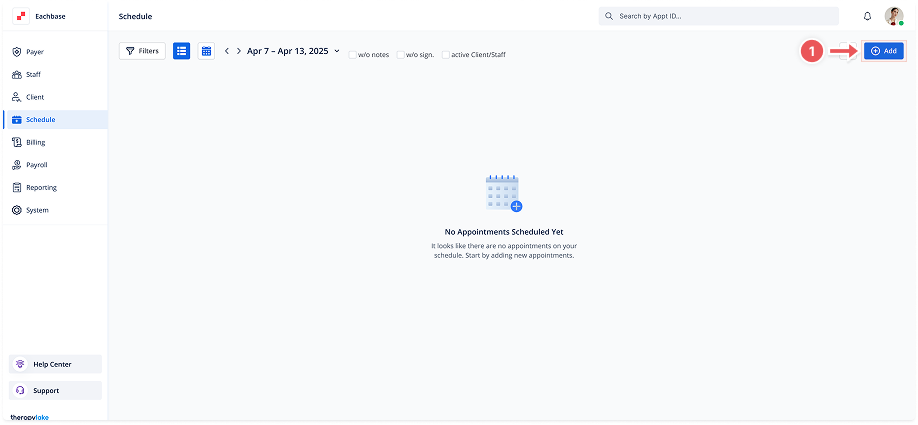
2. Open the 'Add Appointment' Modal
-
Click on the Add Appointment button located in the top right corner of the schedule view.
3. Select Drive Time as the Event Type
-
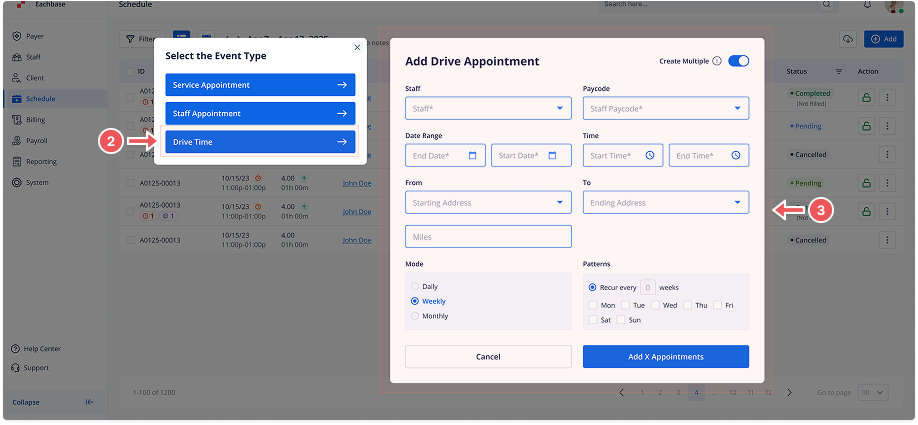
A modal titled Select the Event Type will appear.
-
In the pop-up modal, choose Drive Time as the event type.
4. Enable Multiple Appointments
-
Toggle the Create Multiple switch to the ON position.
5. Fill in Appointment Details
In the Add Drive Appointment (Series) modal, fill in the required details:
-
Staff Member: Select the staff member from the dropdown list.
-
Staff Paycode: Choose the appropriate pay code from the dropdown.
-
Date Range: Choose the start and end dates.
-
Start Time: Enter the start time.
-
End Time: Enter the end time.
-
From: Enter the starting Address.
-
To: Enter the ending Address.
-
Miles: Enter the number of miles.
6. Set Repeat Pattern
-
Mode: Select the recurrence mode (Daily, Weekly, or Monthly).
-
For Daily mode: Enter the number of days to recur or select "Recur every weekday."
-
For Weekly mode: Enter the number of weeks to recur and select the days of the week.
-
For Monthly mode: Specify the day of the month and the number of months to recur.
-
-
The occurrence count will update based on your selected pattern.
7. Add the Recurring Appointments
-
Review the total number of occurrences generated based on the recurrence pattern.
-
Click Add X Appointments (where X is the number of non-overlapping appointments) at the bottom right corner.
8. Handle Conflicts (if any)
-
If there are overlapping schedules, a confirmation modal will appear listing the conflicts.
-
Click Confirm to skip the conflicting appointments or Cancel to go back and adjust.
9. Confirmation
-
The series of drive appointments will now appear in the schedule list or calendar view.