Deleting Payer Files
1. Access the Payer Section
-
- Go to the > Payer section in the left panel.
2. Select the Payer
-
- Choose the Payer from which you want to delete files.
3. Navigate to the Files Tab
-
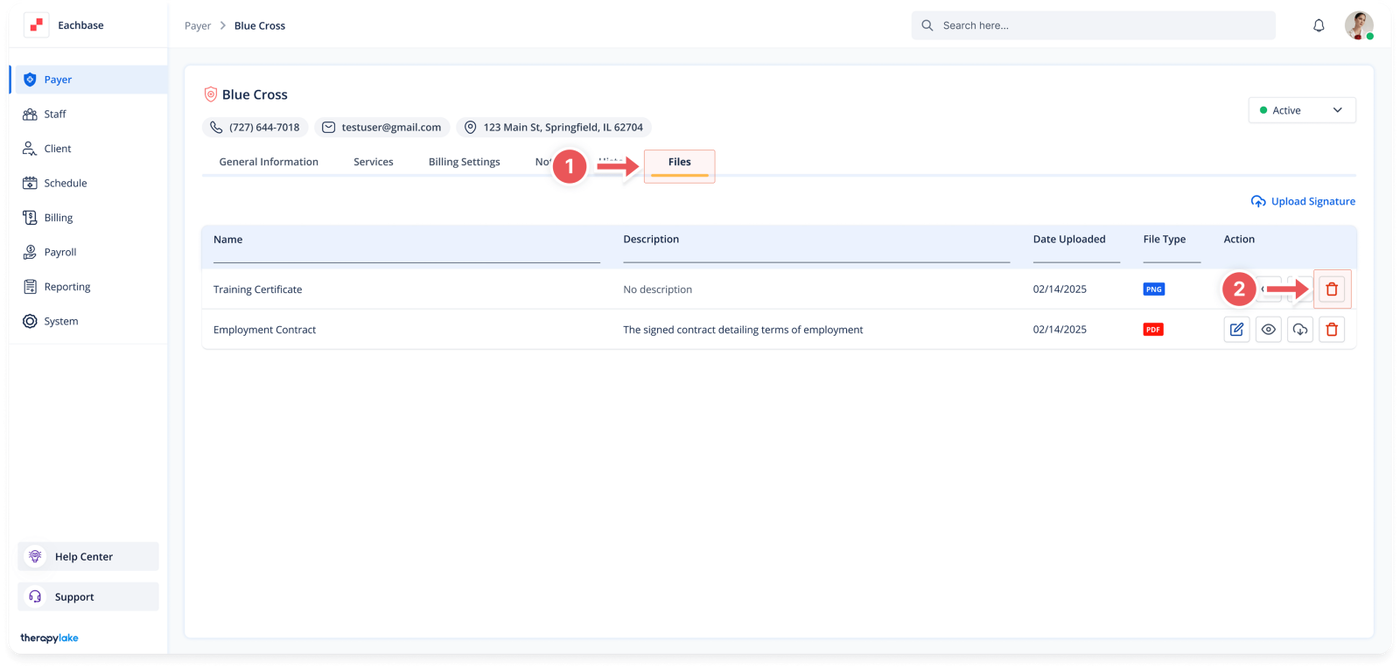
- Click on the Files tab at the top of the page to view all files associated with the Payer.
4. Locate the File to Edit
-
- In the files table, find the file you wish to delete.
5. Delete the File
-
- Click on the trashcan icon on the right side of the file's line in the table.
6. Confirm Deletion
-
- A confirmation pop-up window will appear. Click Delete to confirm the removal of the file.
7. View Updated File List
-
- The file will be removed from the table, and the updated list of files will be displayed.
Was this article helpful?