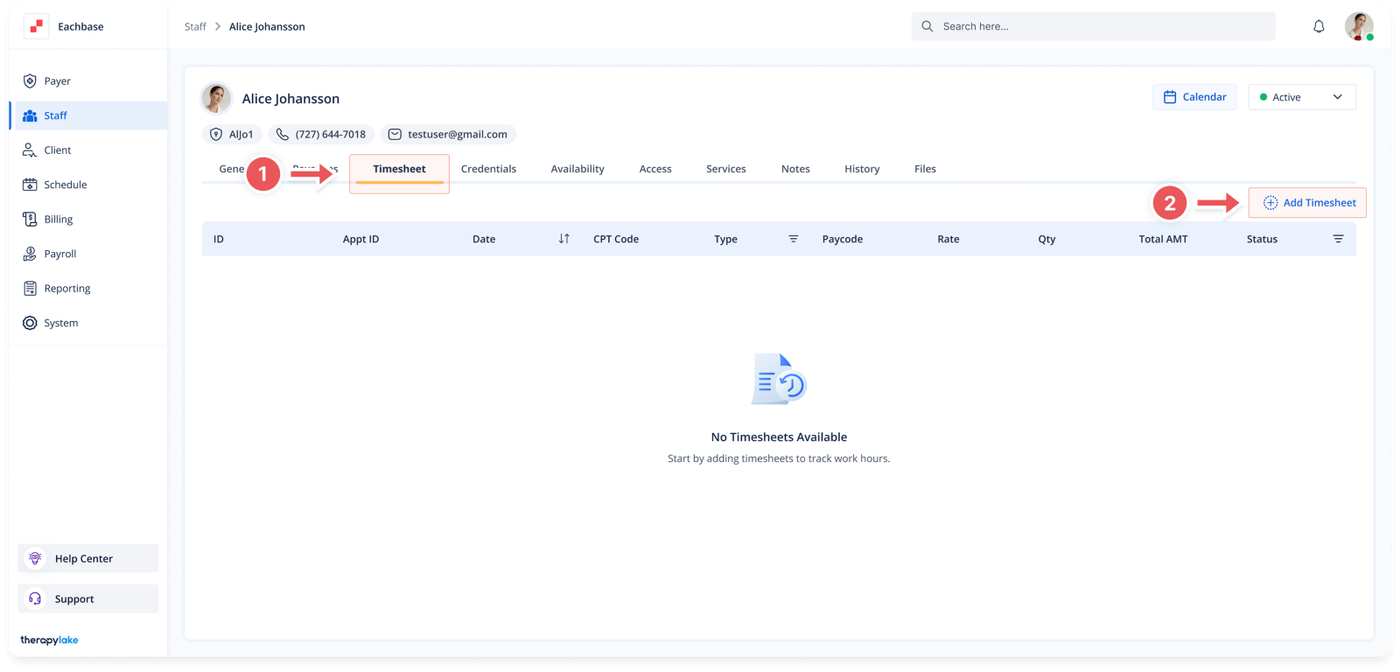
Choose the staff member for whom you would like to add timesheets.
3. Navigate to the Timesheet Tab
Click on the Timesheet tab at the top of the page.
4. Add a New Timesheet
Click on the + Add Timesheet button located above the table on the right side.
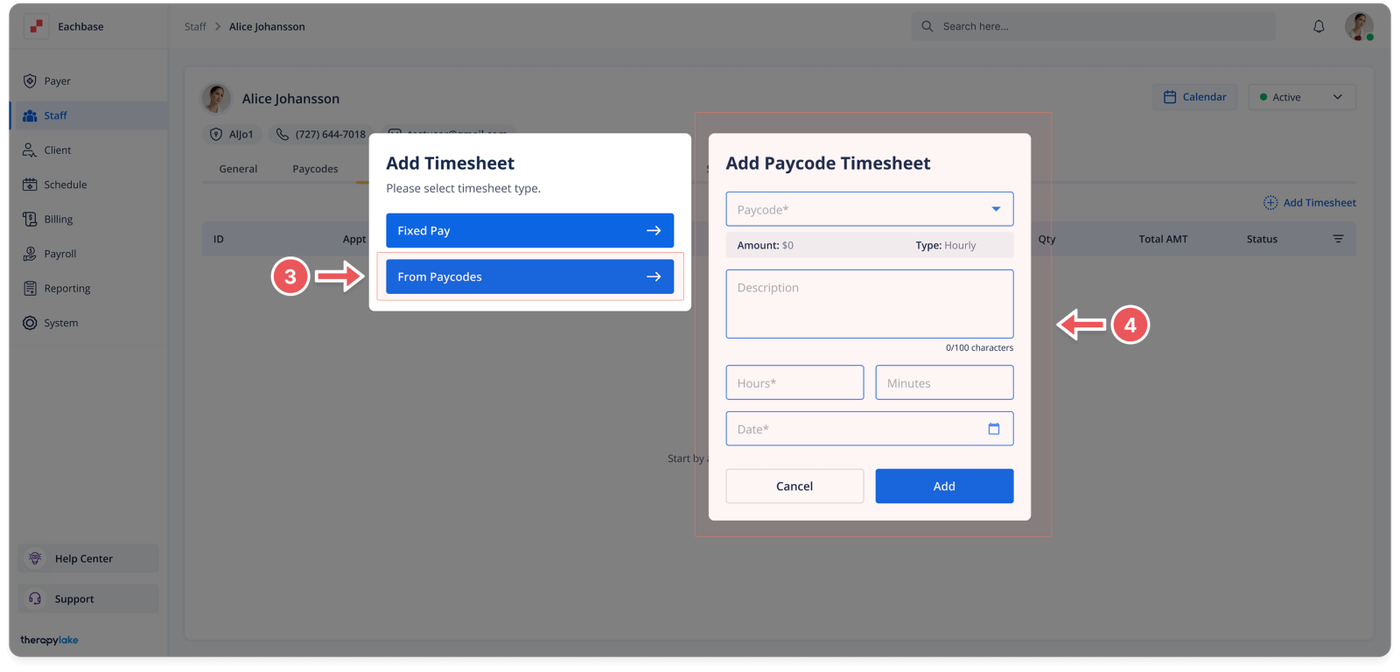
The Add Timesheet pop-up window will appear.
5. Choose Timesheet from Paycodes
Select From Paycodes to add a timesheet based on a paycode already created in the system and used by this staff member.
6. Fill in the Timesheet Details
The Add Paycode Timesheet pop-up window will appear. Fill in the following fields
Paycode: Choose the paycode under which the staff member worked (these paycodes are pre-created by your organization’s administrators in the system settings and added to the staff member's profile).
Description: Enter a description for the timesheet entry.
Hours: Enter the number of hours worked.
Minutes: Enter the number of minutes worked.
Timesheet Date: Enter the date the staff member worked.
7. Save the Timesheet
Click Add at the bottom right of the pop-up window.
8. View the New Timesheet
The newly added timesheet will appear in the timesheet table for the selected staff member.