

Recurring an Appointment
1. Navigate to the Schedule Section
-
Click on Schedule from the left-side navigation panel to view the list of appointments.
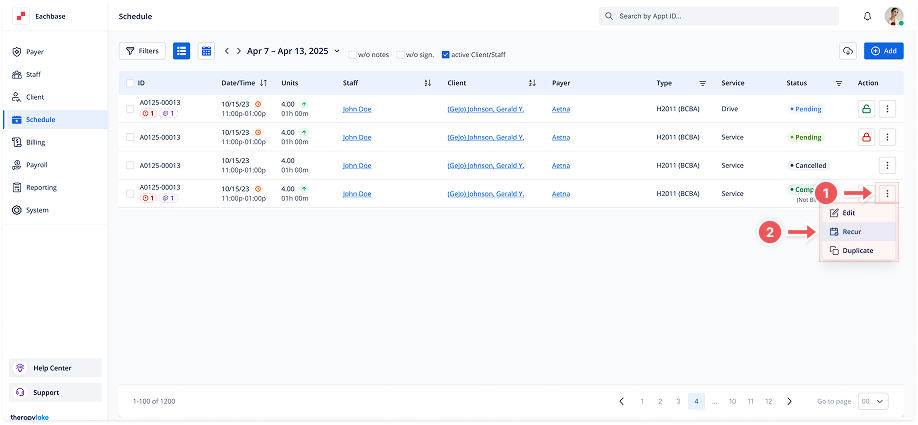
2. Click on the Recur Event Icon
-
In the Actions column, locate the Recur button (circular arrow on calendar icon) for the desired appointment.
3. Set the Recurrence Details
A Recur Event modal will pop up. Fill in the following fields:
-
Date Range: Select the start and end dates for the recurrence.
-
Mode: Choose between Daily, Weekly, or Monthly recurrence patterns.
-
Patterns: Depending on the mode selected, set the recurrence pattern:
-
For Daily mode, specify the interval in days.
-
For Weekly mode, choose the day(s) of the week for the event to recur.
-
For Monthly mode, specify the day of the month for the recurrence.
-
4. Review Occurrences
-
The system will automatically calculate the number of occurrences based on your selections and display it at the bottom of the modal.
5. Confirm the Recurrence
-
Click the Add [X] Appointments button to confirm the recurrence.
6. Review Overlapping Appointments
-
If there are any conflicting appointments, a Confirmation modal will appear, listing any overlapping appointments. Review the conflicts, and if you are okay with skipping those conflicting appointments, click Confirm.
7. Review the Recurring Appointments
-
The newly created recurring appointments will now appear in the Schedule list, based on the set pattern and date range.