

Editing a Note in an Appointment
1. Access the Appointment
-
Navigate to the Schedule section on the left panel.
-
Locate the appointment you want to edit the note for and click on it to open the details modal.
2. Switch to the Notes Tab
-
In the appointment details modal, click on the Notes tab to view any existing notes for the appointment.
3. Select the Note to Edit
-
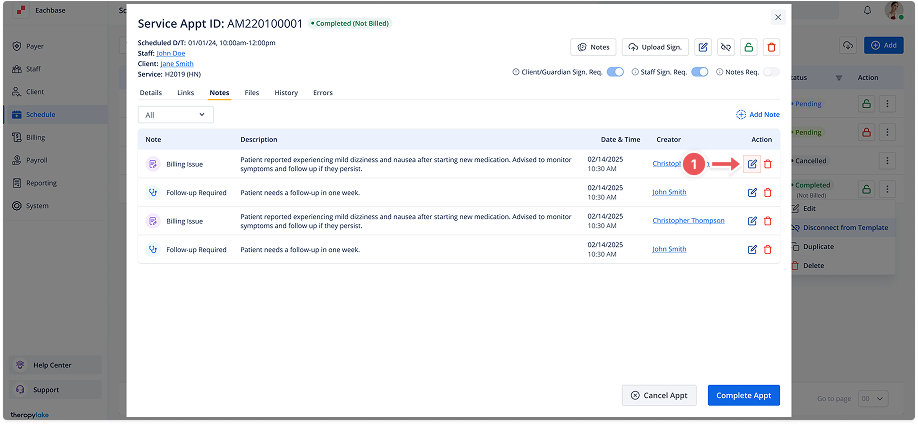
On the Notes tab, you'll see a list of existing notes.
4. Enter Edit Mode
-
Click the Edit button (pencil icon) located on the right side of the note details.
5. Modify the Note
-
Update the Type, Subject or the Body of the note as needed.
6. Save or Cancel the Changes
-
After making the necessary changes, click Save in the bottom-right corner to apply the changes.
-
If you decide not to make any changes, click Cancel to exit edit mode without saving.