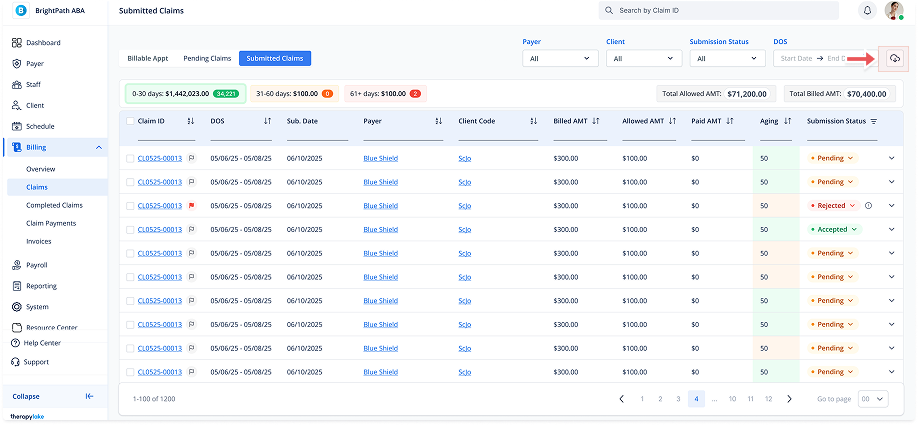
Downloading a CSV of Submitted Claims
1. Navigate to Submitted Claims:
-
Go to the left sidebar and click on Billing > Claims > Submitted Claims.
2. Click the Cloud Download Icon
-
At the top right of the Submitted Claims section, click the cloud icon with an arrow to open the Download Billing CSV modal.
3. Select Report Type
-
In the modal, choose between a General Report or a Detail Report:
-
General Report: Provides an overview of claims.
-
Detail Report: Provides more specific details about each claim.
-
4. Filter the Data
-
Select filters for the CSV export:
-
Payer: Choose a Payer from the dropdown if you want to filter claims by Payer.
-
Client: Choose a Client from the dropdown if you want to filter claims by Client.
-
Start Date and End Date: Set the date range for which you want to download claims.
-
5. Download CSV
-
Once you've set your filters and selected the report type, click Download CSV.
-
The CSV file will be generated and downloaded with the billing data based on your selected filters