Deleting Files in Invoices
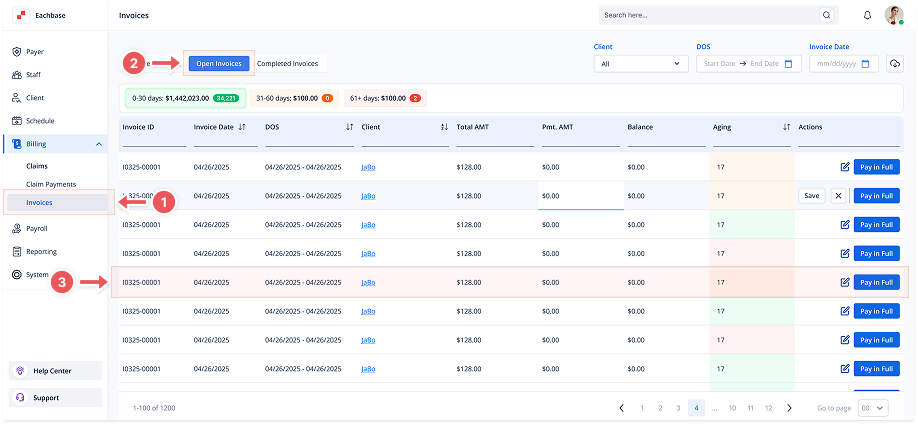
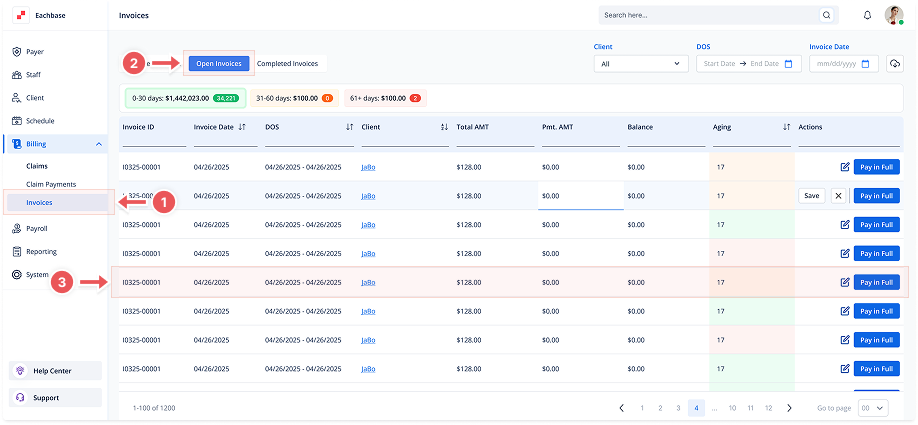
1. Navigate to the Invoices Section
-
Go to the Billing section in the left pane and click on Invoices.
2. Click on the Open Invoices Tab
-
At the top of the page, click the Open Invoices tab to view the list of Open Invoices.
3. Open the Invoice Details
-
Click anywhere on the invoice line to open its details.
4. Open the Files Tab
-
Once inside the invoice details, select the Files tab.
5. Click on Delete Icon
-
Next to the file you want to delete, click the Delete (Trash) icon.
6. Confirm Deletion
-
A confirmation modal will appear. Click Delete to confirm.