Adding a New Claim Payment
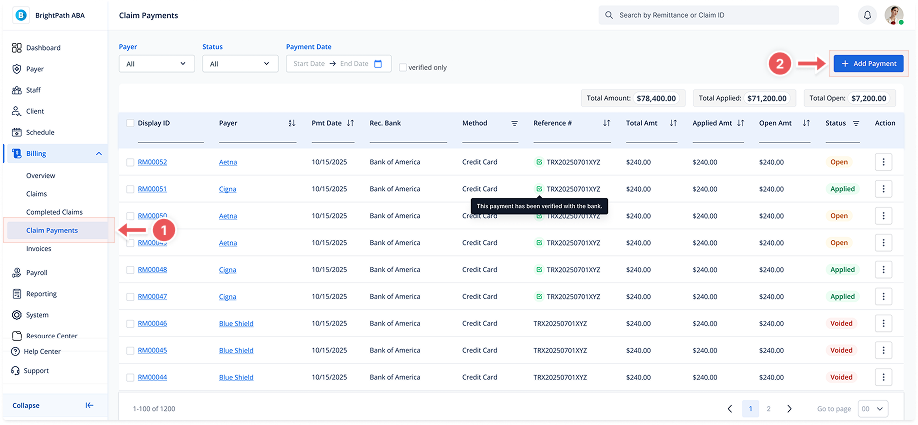
1. Navigate to Claim Payments
-
Go to Billing > Claim Payments in the left sidebar to access all payment records.
2. Click "+ Add Payment"
-
In the top-right corner of the screen, click + Add Payment to open the payment form.
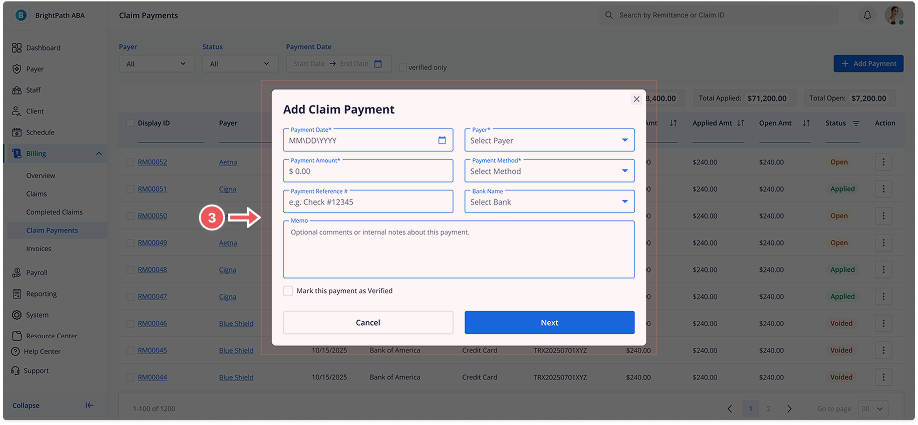
3. Fill Out Payment Details
Complete the fields in the Add Claim Payment modal:
-
Payment Amount
-
Payer
-
Bank Name
-
Payment Method (e.g., Credit Card, EFT, Check)
-
Reference # (e.g., Check number or transaction ID)
-
Notes (optional) — Comments or internal notes
-
Mark as Verified (optional toggle)
Click Next to continue.
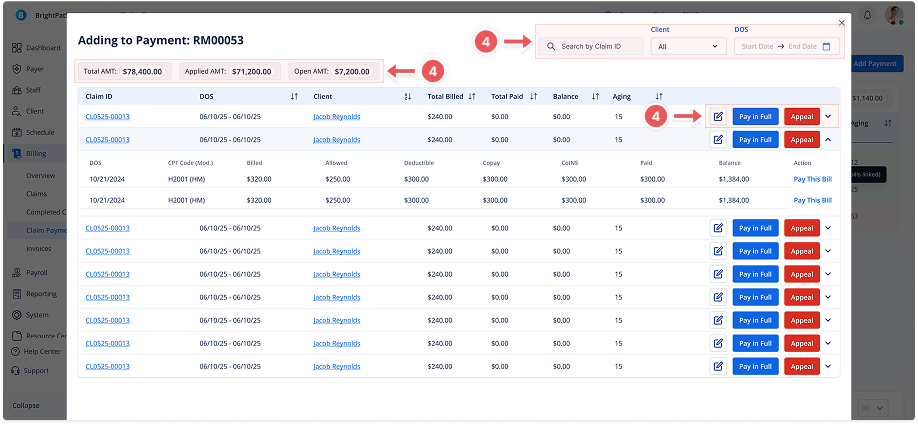
4. Select Claims to Apply the Payment
At the top, you'll see:
-
Total AMT – The full amount of the payment you entered
-
Applied AMT – The amount currently distributed to claims
-
Open AMT – Amount remaining to be applied
Claim Table Overview
Each row shows a claim with key info:
-
Claim ID
-
DOS (Date of Service)
-
Client
-
Total Billed
-
Total Paid
-
Balance
-
Aging
You can filter by:
-
Client
-
DOS
-
Search by Claim ID
Expand to View & Edit Bills
Click the dropdown arrow to expand a claim row. You'll see related bill lines with:
-
Bill ID
-
DOS
-
CPT Code
-
Units
-
Billed / Allowed
-
Deductible / Copay / CoINS
-
Paid
-
Prev. Paid
-
Balance
All editable fields will show as blue underlined inputs when in edit mode.
You can click Pay This Bill to apply a portion of the payment specifically to that bill line.
Available Actions per Claim
-
Pay in Full – Automatically applies the full remaining balance
-
✏️ Edit – Opens bill line fields for manual entry
-
🚩 Appeal – Opens a modal to enter the reason for appeal (required field).