Generating Reports
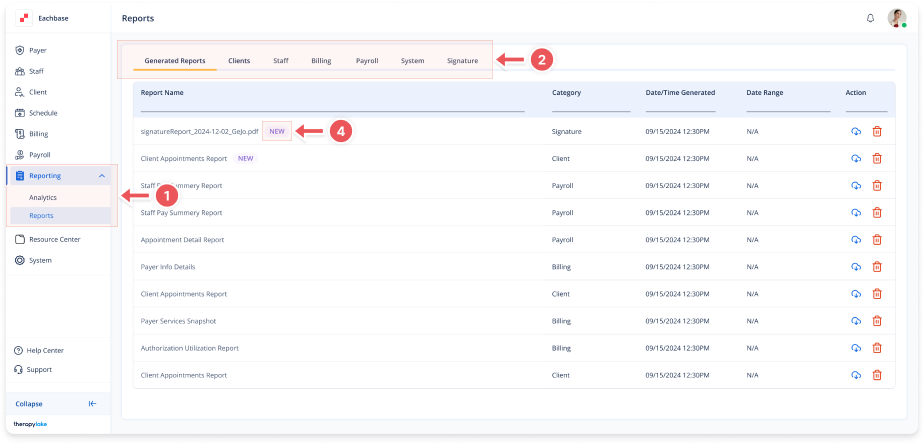
1. Navigate to the Reports Section
-
On the left-side panel, click Reporting > Reports.
2. Select Report Category
-
Choose from tabs: Clients, Staff, Billing, Payroll, System, or Signature.
3. Generate or View Reports
-
For new reports: Click Generate next to the desired report.
-
For past reports: Switch to the Generated Reports tab.
4. "NEW" Tag on Recently Generated Reports
-
When a report is generated, a "NEW" tag will appear next to it in the reports list.
-
This tag helps users quickly identify newly generated reports.
-
It will be automatically removed after the report is downloaded for the first time.
-
This tag is visible under the "Generated Reports" tab and applies to all report categories.