Generating Payroll Summary Report
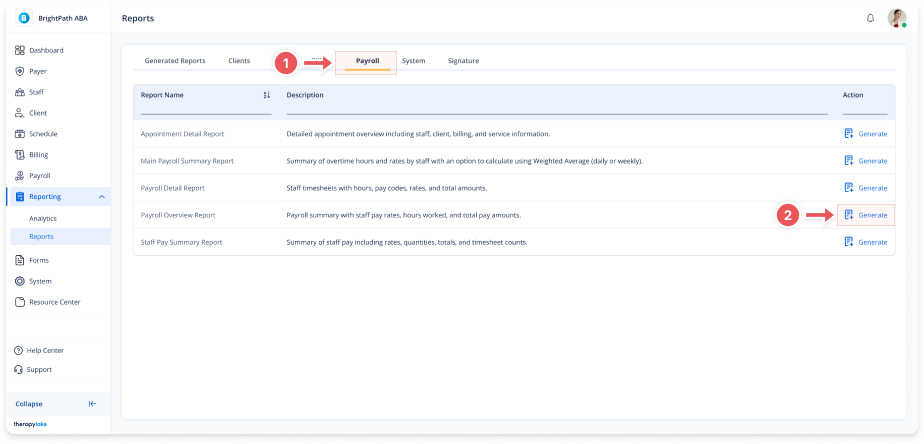
1. Navigate to Payroll Reports
-
Go to the left sidebar and click on Reporting > Reports > Payroll.
2. Select the Report
-
In the screen, locate Main Payroll Summary Report.
-
Click Generate next to the report name.
3. Set Report Parameters
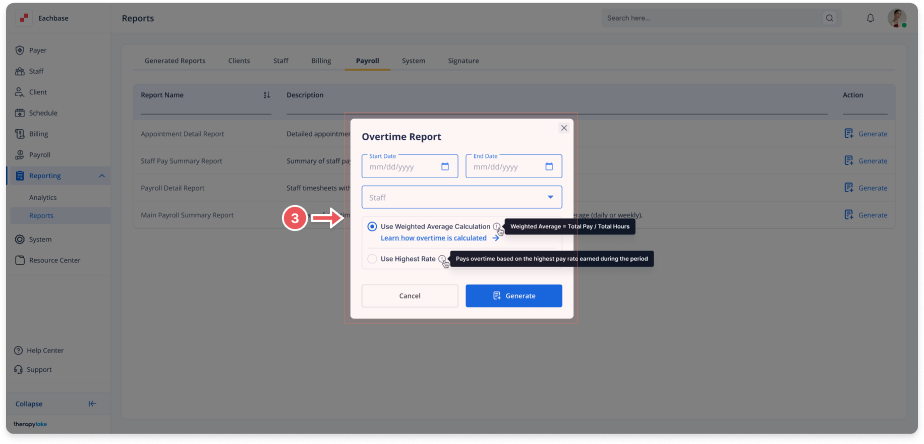
In the Overtime Report modal, fill in the following fields:
-
Start Date / End Date: Choose the reporting period.
-
Staff: Select the staff member or group you want to include.
-
Rate Type: Choose how overtime is calculated:
-
Use Weighted Average Calculation [Recommended]:
This calculates a weighted hourly rate based on paycodes across the selected week. -
Use Highest Rate:
This will use the highest applicable rate for the overtime hours.
-
-
(Optional) Click "Learn how overtime is calculated" to see more details ↓
4. How Overtime Is Calculated
There are two options for overtime rate calculation:
-
Weighted Average:
Uses a weighted average of the staff's pay rates either by day (if daily overtime applied) or by week. For example, if staff worked 4 hours at $50 and 4 hours at $100, the overtime rate is calculated based on the average weighted by time. -
Highest Rate:
Applies the highest of the staff's pay rates to all overtime hours, regardless of distribution.
5. Generate or Cancel
-
Once fields are completed, click Generate to create the report.
-
Click Cancel to exit without generating.
-
The newly generated Report will now appear in the Generating Reports list, ready for Viewing or Downloading.