

Editing a Note for an Active Timesheet
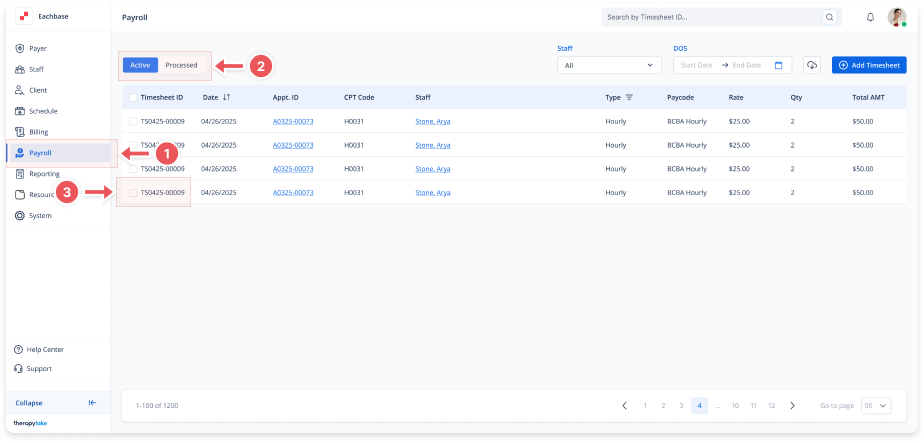
1. Navigate to the Payroll Section
-
On the left-side panel, click Payroll.
2. Select Active Timesheets
-
Select the Active tab at the top left.
3. Select the Timesheet
-
In the Active Timesheets list, click on the Timesheet ID for which you want to edit the note.
4. Click on the Notes Tab
-
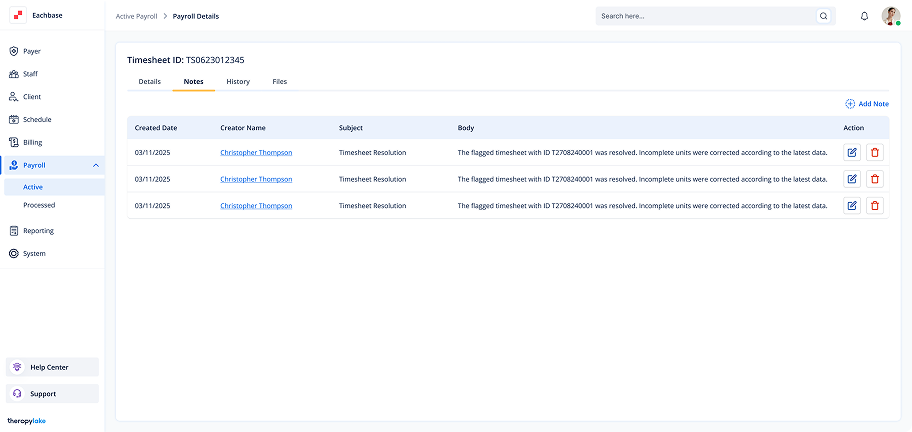
Once in the Timesheet Details screen, click on the Notes tab at the top of the page.
5. Edit the Note
-
In the Action column of the notes list, click the Edit (Pencil Icon) next to the note you want to modify.
6. Modify the Note
-
Update the Subject and Body fields in the modal that pops up.
7. Save the Changes
-
Once you have finished editing the note, click Save. The updated note will now be reflected in the notes list.