Downloading a CSV of Active Timesheets
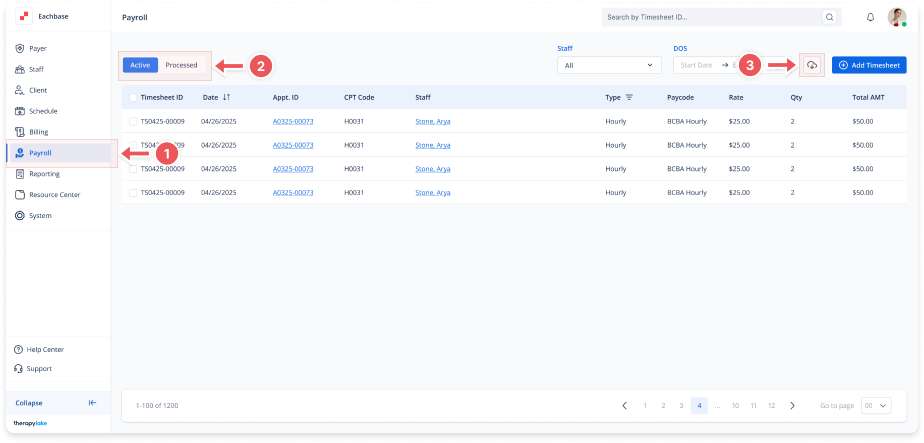
1. Navigate to the Payroll Section
-
On the left-side panel, click Payroll.
2. Select Active Timesheets
-
Select the Active tab at the top left.
3. Open the CSV Download Modal
-
Click the cloud download icon (arrow pointing down) located at the top-right of the page, next to the Add Timesheet button.
4. Select Filters (Optional)
-
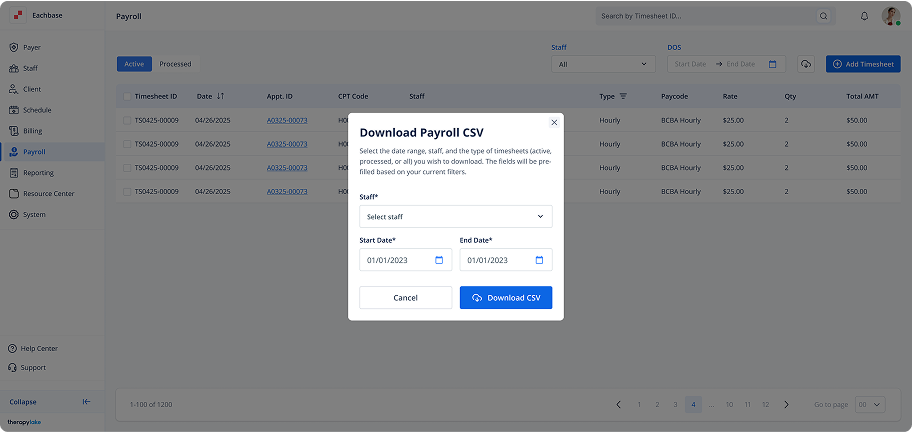
In the Download Payroll CSV modal that appears, you can choose the following:
-
Staff: Select one or multiple staff members to limit the download to their timesheets. Leave blank to include all staff.
-
Start Date/End Date: Specify the date range of timesheets to download. Leave blank to download all timesheets.
-
5. Download the CSV
-
Once your selections are made, click Download CSV.
-
A CSV file containing the selected timesheets will be downloaded to your device.