Deleting a Note from an Active Timesheet
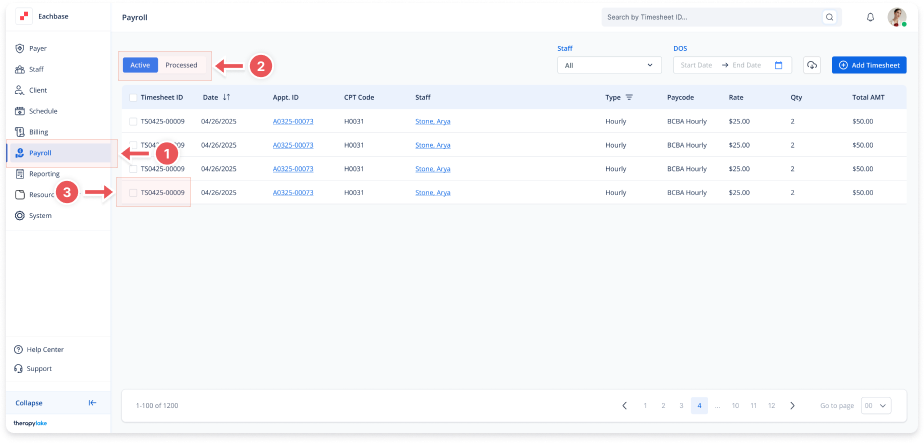
1. Navigate to the Payroll Section
-
On the left-side panel, click > Payroll.
2. Select Active Timesheets
-
Select the Active tab at the top left.
3. Select the Timesheet
-
In the Active Timesheets list, click on the Timesheet ID for which you want to delete the note.
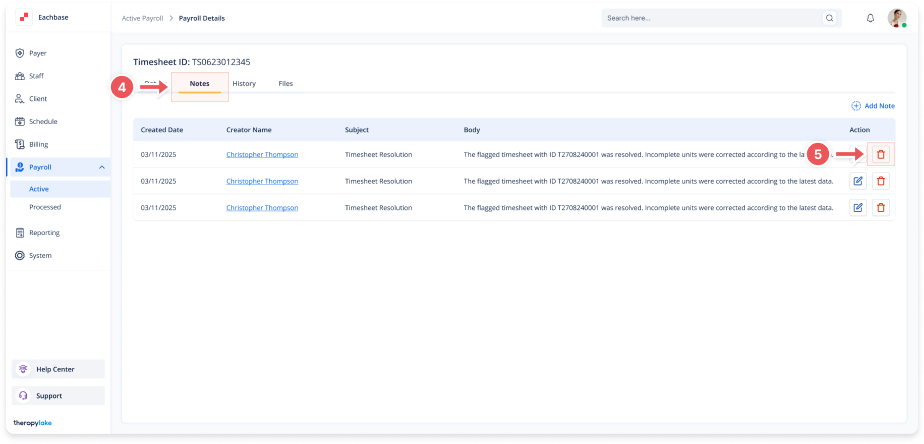
4. Click on the Notes Tab
-
Once in the Timesheet Details screen, click on the Notes tab at the top of the page.
5. Delete the Note
-
In the Action column of the notes list, click the Delete (Red X Icon) next to the note you want to delete.
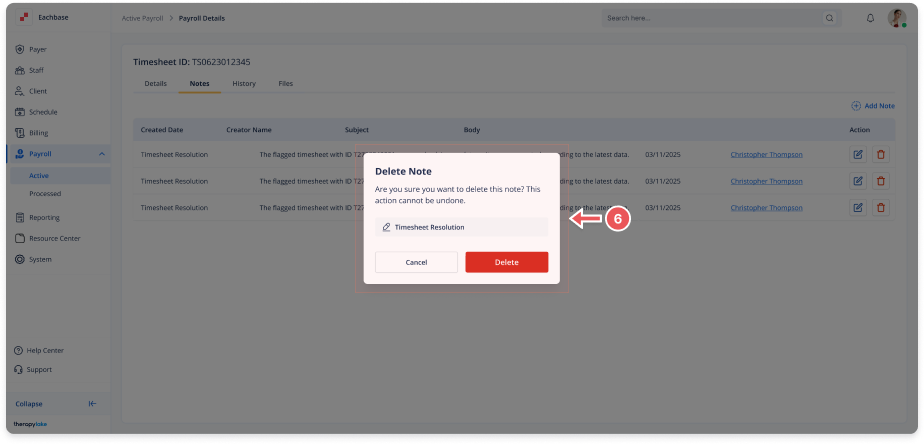
6. Confirm Deletion
-
A confirmation modal will appear. Review the note and click Delete to confirm. This action cannot be undone, and the note will be permanently deleted.