Adding Timesheets in Payroll from Paycodes
1. Navigate to the Payroll Section
-
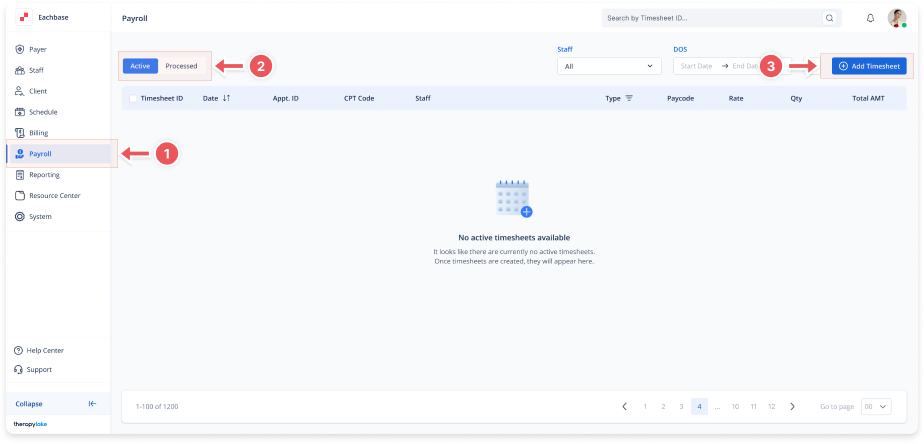
On the left-side panel, click Payroll.
2. Select Active Timesheets
-
Select the Active tab at the top left.
3. Open the Add Timesheet Modal
-
Click on the blue Add Timesheet button at the top right.
-
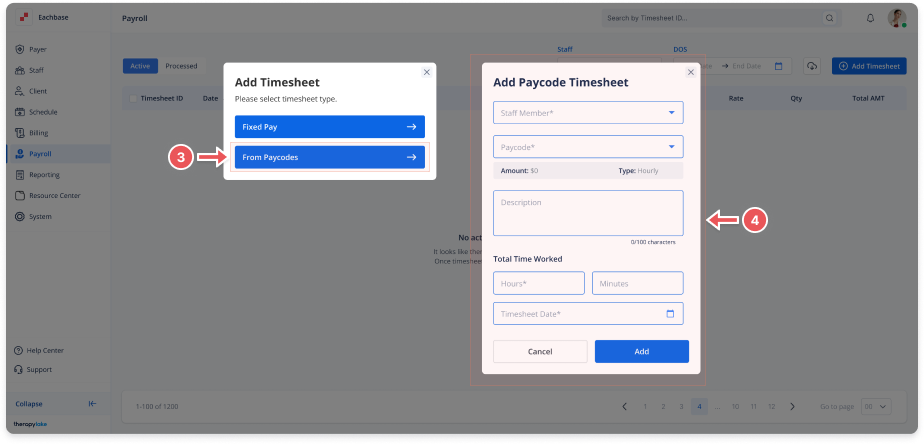
A modal will appear with two options: Fixed Pay and From Paycodes.
-
Select From Paycodes to proceed.
4. Enter Timesheet Details
-
A modal titled Add Paycode Timesheet will appear. Fill in the following fields:
-
Staff Member: Choose the staff member for whom you are adding the timesheet.
-
Paycode: Select the appropriate paycode for the work done (e.g., BI Hourly, BCBA Hourly, etc.).
-
Amount: The amount field will automatically populate based on the paycode selected, but you can edit it if necessary.
-
Description: Provide a brief description of the work or timesheet.
-
Hours and Minutes: Input the hours and minutes worked for the timesheet.
-
Timesheet Date: Select the date for the timesheet entry.
-
5. Save the Timesheet
-
After entering all the required details, click the blue Add button to save the timesheet.
-
The timesheet will now appear in the Active timesheets list.